December SharePoint Happenings

I’ve got a few SharePoint-related activities coming up in December. In this post, I talk about the presentation I’ll be giving at the CincySPUG on Thursday, December 2nd. I also cover my participation in the upcoming SharePoint Saturday Kansas City event on Saturday, December 11th.

Thanksgiving has passed, December is right around the corner, and it seems that many folks I know are settling into the holiday mindset.  There’s very little slowdown of activity when it comes to SharePoint, though; one need only look at the SharePoint Saturday home page to see that the first half of December is jam-packed with events.

I’ll be participating in a couple of SharePoint events myself in December, and I thought I’d share those.

Cincinnati SharePoint User Group (CincySPUG)

It’s been quite a while since I’ve attended the monthly Cincinnati SharePoint User Group meetings, and I’ve been meaning to get back to some level of involvement for a while now.  Family and work-related obligations have tied me up more often than not, and then there’s the fact that the meeting location is a solid 40 minutes from my house – and that’s before factoring in rush-hour traffic.

All excuses aside, I’m happy to announce that I’ll be speaking at this month’s CincySPUG meeting.  I’ll be delivering the SharePoint 2010 Disaster Recovery: New Capabilities, New Possibilities! talk that I recently delivered at SharePoint Saturday Dallas.  Here’s the abstract:

Disaster recovery planning for a SharePoint 2010 environment is something that must be performed to insure your data and the continuity of business operations. Microsoft made significant enhancements to the disaster recovery landscape with SharePoint 2010, and we’ll be taking a good look at how the platform has evolved in this session. We’ll dive inside the improvements to the native backup and restore capabilities that are present in the SharePoint 2007 platform to see what has been changed and enhanced. We’ll also look at the array of exciting new capabilities that have been integrated into the SharePoint 2010 platform, such as unattended content database recovery, SQL Server snapshot integration, and configuration-only backup and restore. By the time we’re done, you will possess a solid understanding of how the disaster recovery landscape has changed with SharePoint 2010.

I put the talk together using Prezi, so its style and flow is inherently different from the standard PowerPoint deck you’re probably used to seeing.

The December 2010 meeting of the CincySPUG is at MAX Technical Training on Thursday, December 2nd.  Socializing starts at 6pm, and the actual presentation goes from 6:30pm until 8pm.  If you have the time and availability, it would be great to see you.

Oh, and here’s (perhaps) a little extra incentive: I’ll be giving away a copy of the new SharePoint 2010 Disaster Recovery Guide that John Ferringer and I co-authored.  Come on out!

SharePoint Saturday Kansas City

SharePoint Saturday Kansas CityI mentioned that there are a number of SharePoint Saturday events during the first half of December, and I’m fortunate enough to be participating in one them!

SharePoint Saturday Kansas City will be held on Saturday December 11th at the Johnson County Community College Regnier Center (12345 College Blvd., Overland Park, KS 66210-1299).  The event is a full day of free SharePoint training; all you need to do is register through the Eventbrite site and show up!

I’ll be presenting the tried-and-true Saving SharePoint session.  Here’s the abstract:

In this session, we will be discussing disaster recovery (DR) concepts and strategies for SharePoint in a format that highlights a combination of both business and technical concerns.  We will define some critical planning terms such as “recovery time objectives” and “recovery point objectives,” and we’ll see why they are so important to understand when trying to formulate a DR strategy.  We will also identify the capabilities and limitations of the Microsoft tools that can used for backing up, restoring, and making SharePoint highly available for disaster recovery purposes.  Changes that have arrived with SharePoint Server 2010 and how they affect DR planning and implementation will also be covered.

I’m not one to simply leave a presentation alone.  I’ve delivered Saving SharePoint a number of times, but I’ve found a few new goodies to work into it for this go ‘round – should be fun!

Additional Reading and References

  1. Site: SharePoint Saturday Home Page
  2. Group: Cincinnati SharePoint User Group
  3. Event: SharePoint Saturday Dallas
  4. Tools: Prezi
  5. Training: MAX Technical Training
  6. Book: SharePoint 2010 Disaster Recovery Guide
  7. Blog: John Ferringer’s MyCentralAdmin
  8. Event: SharePoint Saturday Kansas City
  9. Site: Eventbrite Registration for SPS KC

SPTechCon Boston Lightning Talk

This post contains my SPTechCon Boston lightning talk titled “Backup/Restore Knowledge Nuggets: What’s True, What’s Not?” I also spend a few moments talking about Prezi and how it compares to PowerPoint.

Last week, I was in Boston for BZ Media’s SPTechCon Boston event.  It was a great opportunity to see and spend time with many of my friends in the SharePoint community, do a book signing with John Ferringer and Idera, and take in a few sessions.

Although I wasn’t technically a presenter at the conference, I did deliver a “lightning talk” on the first day of the conference.  Lightning talks are five minute presentations that are typically given by sponsors and designed to expose audiences (who are usually chowing-down on food) to the sponsors’ services, products, etc.

I was given Idera’s slot to speak, and I was also given the latitude to basically do whatever I wanted … so, I decided to have some fun with it!

The Lightning Talk Itself

The five minute presentation that appears below is titled Backup/Restore Knowledge Nuggets: What’s True, What’s Not?  If you weren’t at SPTechCon and can spare a few minutes, I think you’ll find the presentation to be both amusing and informative.

Follow the link and try it out!  You’ll find that the play button allows you to step through the presentation from start to finish pretty easily.

Prezi has a very slick mechanism for embedding actual presentations directly into a website, but that isn’t an option here on my blog.  WordPress.com hosts my blog, and they strip out anything with <object> tags.  I tried to embed the presentation directly, but it got me nowhere  :-(

Wait, What’s Prezi?

I recently became hooked on Prezi (the product + service that drove both the lightning talk and the link that I included above) when I saw Peter Serzo use it to deliver his service application session at SharePoint Saturday Columbus.  Prior to Prezi, I did everything with PowerPoint.  Once I saw Prezi in action and got some additional details from Peter, though, I knew that I’d be using Prezi before long.

I don’t see Prezi as a replacement for PowerPoint, but I do see it as a nice complement.  PowerPoint is great for presenting sequential sets of data and information, and it excels in situations where a linear delivery is desirable.

Prezi, on the other hand, is fantastic for talks and presentation where jumping around happens a lot – such as you might do when trying to tie several points back to a central theme or concept.  Prezi isn’t nearly as full-featured as PowerPoint, but I find that it can be more visually engaging and simply “fun.”

Wrapping It Up

The lightning talk at SPTechCon was the perfect arena for a test run with Prezi, and I think the presentation went wonderfully… and was a whole lot of fun to deliver, as well.  I certainly see myself using Prezi more in the future.  SharePoint Saturday Dallas is coming up in just a couple of weeks …

If you take the time to watch the presentation, I’d really love to hear your feedback!

Additional Reading and References

  1. Company: BZ Media LLC
  2. Book: SharePoint 2010 Disaster Recovery Guide
  3. Blog: John Ferringer’s MyCentralAdmin
  4. Company: Idera
  5. Presentation: Backup/Restore Knowledge Nuggets: What’s True, What’s Not?
  6. Product: Prezi
  7. Twitter: Peter Serzo (@pserzo)
  8. Event: SharePoint Saturday Columbus
  9. Event: SharePoint Saturday Dallas

Fall SharePoint Fun

In this post, I discuss a couple of events that I have coming up; specifically, SPTechCon Boston and SharePoint Saturday Dallas.

Fall is here, and the SharePoint bus keeps on rolling down the road.  There’s no shortage of events coming up – conferences, SharePoint Saturdays, and more.  Here are a couple of events in which I’ll be participating.

SPTechCon Boston

In a couple of days, I’ll be heading up to Boston for SPTechCon Boston 2010.  The event is put on by Dave Rubenstein of BZ Media, and it promises to be one of the bigger SharePoint conferences of this year.

Idera book signings at SPTechConAlthough I’m presenting a “lightning talk” on Wednesday the 20th titled Backup/Restore Knowledge Nuggets: What’s True, What’s Not?, it’s only five minutes long … and not the main reason I’m going to the conference.  To tell you the truth, I’m simply looking forward to taking in some of the sessions and seeing many of my friends in the community whom I haven’t seen in a while.

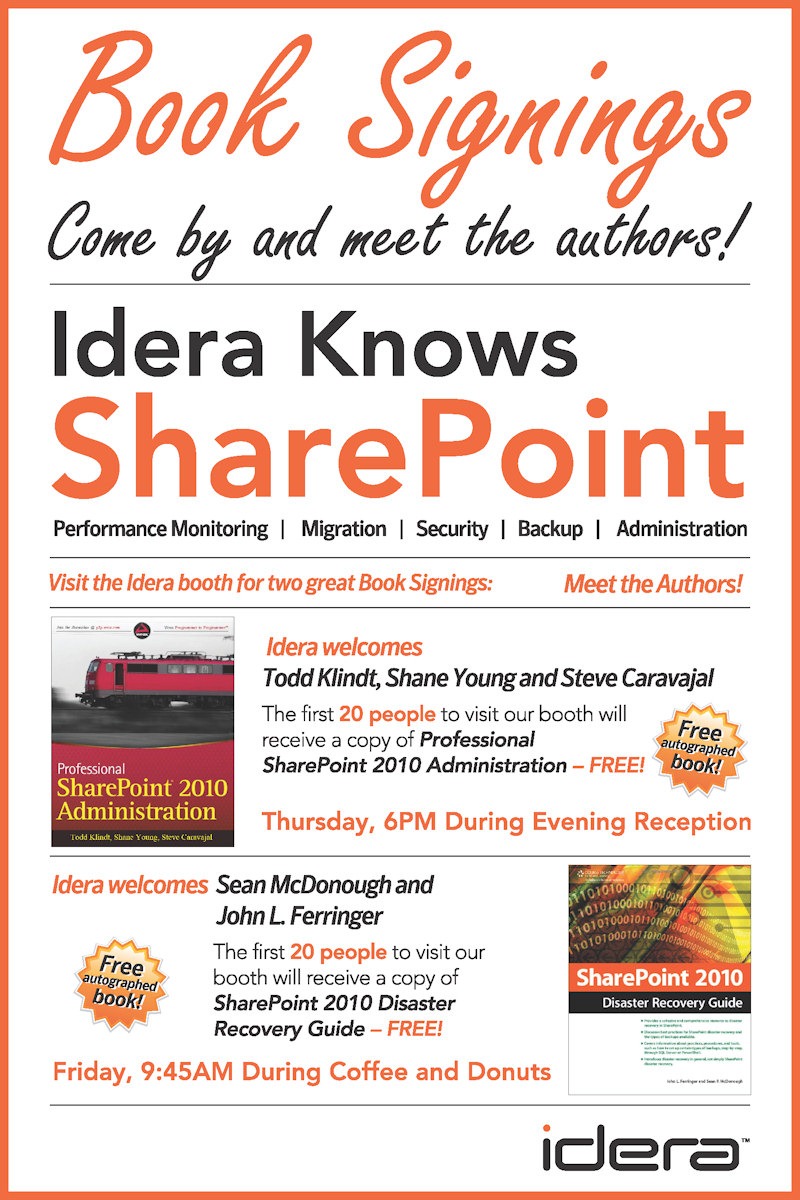
My co-author, John Ferringer, is one of those folks I haven’t seen in a while – since SharePoint Saturday Columbus, I believe. Thanks to the folks at Idera, the two of us will be getting the band back together to do a book signing on Friday morning (the 22nd) at 9:45am during coffee and donuts.  Idera purchased 20 copies of our SharePoint 2010 Disaster Recovery Guide, and they’ll be giving them away (see the poster on the right).  John and I will be signing those books, so if you want to meet a couple of flagship members in the “SharePoint Mr. Clean Team” (to quote SharePoint superstar and all-around great person, Joy Earles), please swing by the Idera booth!

SharePoint Saturday Dallas

SharePoint Saturday Dallas logo I knew that I was going to be down in Houston for some business during the second week of November, so when I learned that Eric Shupps was in the process of pulling things together for SharePoint Saturday Dallas during the same time frame (Saturday, November 13th), I pinged him to see if he could use another speaker.  He pinged me back, and it looks like I’ll be making a stop in Dallas on my way back to Cincinnati.

The session I’ll be presenting is titled SharePoint 2010 and Your DR Plan: New Capabilities, New Possibilities!, and it’s a relatively new one for me.  It’s a disaster recovery talk, but it’s primarily a technology-focused look at the new platform capabilities and improvements that come with SharePoint 2010.  Here’s the abstract:

Disaster recovery planning for a SharePoint 2010 environment is something that must be performed to insure your data and the continuity of business operations. Microsoft made significant enhancements to the disaster recovery landscape with SharePoint 2010, and we’ll be taking a good look at how the platform has evolved in this session. We’ll dive inside the improvements to the native backup and restore capabilities that are present in the SharePoint 2007 platform to see what has been changed and enhanced. We’ll also look at the array of exciting new capabilities that have been integrated into the SharePoint 2010 platform, such as unattended content database recovery, SQL Server snapshot integration, and configuration-only backup and restore. By the time we’re done, you will possess a solid understanding of how the disaster recovery landscape has changed with SharePoint 2010.

The SharePoint Saturday event is being held at the Hilton Dallas Park Cities from 9am until 5:30pm on Saturday, November 13th.  If you work with SharePoint and reside in or around the Dallas area, I strongly encourage you to sign up for the event and come on out.  Like all SharePoint Saturday events, there’s no cost to you – it’s simply a free day of training, food, giveaways, and interaction with the SharePoint community!

Additional Reading and References

  1. Event: SPTechCon Boston 2010
  2. Company: BZ Media
  3. Blog: John Ferringer’s My Central Admin
  4. Company: Idera
  5. Book: SharePoint 2010 Disaster Recovery Guide
  6. Twitter: Joy Earles
  7. Event: SharePoint Saturday Dallas
  8. Blog: Eric Shupps Blog
  9. Venue: Hilton Dallas Park Cities
  10. Registration: SharePoint Saturday Dallas

A Tale of Two Cmdlets

In this post I investigate the differences between the Backup-SPFarm and Backup-SPConfigurationDatabase cmdlets in the process of configuration-only backup in SharePoint 2010. I also extrapolate a bit on how the Backup-SPConfigurationDatabase may have come to be.

I recently authored a blog post titled “Configuration-Only Backup and Restore in SharePoint 2010,” and in that post I tried to address some of the false hopes and misunderstandings I saw arising around SharePoint 2010’s configuration-only backup and restore capabilities.

While I was putting the post together, I was reminded of another head-scratcher that I’ve seen confuse some folks on a handful of occasions; specifically, what the differences are between the Backup-SPFarm and Backup-SPConfigurationDatabase PowerShell cmdlets in SharePoint 2010 when it comes to configuration-only backup.

Before I go too far, I should probably rewind a bit and explain a few things.

Many Paths to the Destination

If you aren’t yet familiar with configuration-only backup and restore in SharePoint 2010, the basics of it are covered in this TechNet article and in my previous post.  I’d recommend checking both out before continuing.

Configuration-only backups in SharePoint 2010 can be generated in several different ways;

  1. Using the “Backup up only configuration settings” option when running a backup using Central Administration’s Farm Backup and Restore capabilities.
  2. Through STSADM.exe using STSADM.exe –o backup with the –ConfigurationOnly switch.
  3. By running the Backup-SPFarm PowerShell cmdlet along with the –ConfigurationOnly switch.
  4. By executing the Backup-SPConfigurationDatabase PowerShell cmdlet.

Option #1 is obviously designed for the “UI-oriented” administrator who wants to accomplish a configuration-only backup with a point-and-click interface.  Option #2 works, but Microsoft has been pretty clear that STSADM.exe is on its way out and should be generally be avoided in favor of the PowerShell cmdlets shown in Options #3 and #4.

Options #3 and #4 are where I’ve actually seen some administrative head-scratching start.  Both options leverage PowerShell, and both produce a configuration-only backup.  The Backup-SPConfigurationDatabase cmdlet would seem most appropriate for the job … but is it?  If it is most appropriate, then why the redundant capability with the Backup-SPFarm cmdlet?

Two Cmdlets, One Function?

We have two PowerShell cmdlets that produce the same type of backup set.  Understanding how the cmdlets differ starts with an analysis of the syntax and parameters for each one.  Let’s start by looking at the syntax for each of the cmdlets in full.

First, the Backup-SPFarm cmdlet.

[sourcecode language=”powershell”]Backup-SPFarm -BackupMethod <String> -Directory <String> [-AssignmentCollection <SPAssignmentCollection>] [-BackupThreads <Int32>] [-ConfigurationOnly <SwitchParameter>] [-Confirm [<SwitchParameter>]] [-Force <SwitchParameter>] [-Item <String>] [-Percentage <Int32>] [-WhatIf [<SwitchParameter>]] [<CommonParameters>][/sourcecode]

Next, the Backup-SPConfigurationDatabase cmdlet.

[sourcecode language=”powershell”]Backup-SPConfigurationDatabase -Directory <String> [-AssignmentCollection <SPAssignmentCollection>] [-DatabaseCredentials <PSCredential>] [-DatabaseName <String>] [-DatabaseServer <String>] [-Item <String>] [<CommonParameters>][/sourcecode]

Each of the cmdlets requires that you specify where the backup set should be created using the –Directory switch, and each cmdlet permits the selection of either the entire configuration hierarchy (the default) or specific subset of it through the –Item switch.

There’s quite a bit of noise in the full syntax for each cmdlet, particularly for Backup-SPFarm, so let’s distill things down a bit and look at each cmdlet in turn.

Backup-SPFarm

For the purposes of this discussion, the following represents the core syntactical elements of interest for configuration-only backup using the Backup-SPFarm cmdlet:

[sourcecode language=”powershell”]Backup-SPFarm [-ConfigurationOnly <SwitchParameter>][/sourcecode]

All you need to do is specify the –ConfigurationOnly switch and you’re ready to go.  There’s really not much more to it than that.

Under the hood, this method of configuration-only backup creation is the same as running a configuration-only backup operation from within SharePoint Central Administration.  Backup-SPFarm assumes that you’ve got a live SharePoint farm, that it’s operating properly, and that you want to capture its configuration with the backup process.

Backup-SPConfigurationDatabase

So then, what’s the deal with Backup-SPConfigurationDatabase?

[sourcecode language=”powershell”]Backup-SPConfigurationDatabase [-DatabaseCredentials <PSCredential>] [-DatabaseName <String>] [-DatabaseServer <String>][/sourcecode]

Clearly there’s something more going on with this cmdlet.  Looking at the parameters, it should be clear that the –DatabaseName and –DatabaseServer switches allow you to specify an alternate configuration database and server location as the target of the configuration-only backup operation you intend to perform.  If you happen to require SQL Server authentication to access the configuration database, then you can specify connection credentials with the –DatabaseCredentials switch.

In most cases where I’ve seen the Backup-SPConfigurationDatabase cmdlet described, these extra database-centric parameters have been passed-off as giving you the ability to backup configuration databases that reside in other (non-local) farms.  I’ve also seen it suggested that it would be possible to centralize configuration-only backups for multiple farms using this cmdlet.  While I think that those are certainly possibilities, I think that they fail to consider the bigger picture and backup/restore as an end-to-end process.

It’s All About Recovery

First, let me close the case on the Backup-SPFarm cmdlet.  Under normal circumstances, Backup-SPFarm is how you should be running a configuration-only backup if you need it.  The TechNet documentation spells this out in the description for both the Backup-SPFarm and Backup-SPConfigurationDatabase cmdlets.  Although Backup-SPConfigurationDatabase can be used to backup the configuration database of an operational farm, that’s not really its intended use (as I see it, anyway).

To understand the real value of the Backup-SPConfigurationDatabase cmdlet, you need to think past the execution of backups and consider the process of recovery.  In many of the organizations I’ve consulted for, the SharePoint environments were not protected using the native backup and restore capabilities that come with the platform.  Quite a few of these mid-size and enterprise organizations handled SharePoint farm protection using SQL Server backups, third-party tools, or a combination of the two.  Usability guidelines for the native backup capabilities were sometimes the reason for avoiding SharePoint’s built-in tools; in other cases, backups were controlled and managed by a different internal group that had already standardized on their own (non-SharePoint) backup tool or product.

In each of the aforementioned backup scenarios, the primary goal was protection of SharePoint’s SQL Server databases.  Content databases were utterly critical targets in these backup scenarios since nothing would bring them back if they were lost.  Whether or not other databases were backed up depended on the recovery strategy.  In the event of catastrophic farm failure, some administrators try to recover all parts of the farm; others prefer to rebuild the farm from scratch and bolt the content databases back in.  Many different approaches to the recovery challenge exist, and each has benefits and disadvantages.

Regardless of the restore approach taken for database backups, the SharePoint farm configuration database has generally been regarded as relatively useless.  After all, farm configuration databases are not normally portable.  When you rebuild a SharePoint farm, you end up with a new farm configuration database.  In SharePoint 2007, it was generally accepted that the farm configuration database was “throwaway;” backing it up wasn’t even necessary unless you had some very specific (and oftentimes proprietary) use case for it.

The Restore Process: SharePoint 2010-Style

With SharePoint 2010, the question of “should I backup the farm configuration database?” should generally be answered with a “yes.”  The same restrictions regarding the use of a farm configuration database backup still apply from SharePoint 2007 (i.e., you can’t simply “drop it into” a live SharePoint farm and go), but we now have configuration-only backup and restore with SharePoint 2010.

If you think about the database or file-based approach to backup, and you consider the process of restoring or rebuilding a SharePoint farm, then you’ll probably understand where the Backup-SPConfigurationDatabase cmdlet actually fits in.  The cmdlet is less about backup than it is about restore.

If you’re trying to put a farm back together after a catastrophic failure using database backups, then you’re probably going to follow a series of steps that starts out like this:

  1. Rebuild your servers with their operating systems
  2. Install SharePoint
  3. Create a new SharePoint farm (with a new farm configuration database)
  4. Restore your old farm’s databases

Once you’ve completed step #3, you actually have a working SharePoint farm – it just doesn’t look anything like the farm you’re trying to rebuild/restore yet.  You’ll probably still need to re-provision services and service applications, re-establish all of your farm’s configuration settings, etc.

Assuming you were capturing your farm configuration database as part of the backup cycle for your old farm, then step #4 is where the Backup-SPConfigurationDatabase can be brought in to work its magic.  The Backup-SPConfigurationDatabase does actually require a functional farm to properly operate (even against another configuration database), but it can be used to execute a configuration-only backup against the old (pre-catastrophe) farm configuration database that was restored into SQL Server from backup in step #4.  The configuration-only backup set that is generated through the Backup-SPConfigurationDatabase action can then be brought into the rebuilt farm almost immediately using the Restore-SPFarm cmdlet with the –ConfigurationOnly switch engaged.

The Data Protection Manager 2010 Connection

I’ll be clear and state that I don’t have hard evidence to say with certainty that my take on the Backup-SPFarm and Backup-SPConfigurationDatabase division of responsibilities is what Microsoft envisioned when they created them, but I am relatively confident based on what I’ve seen and know – especially when I factor-in Microsoft’s data protection product offerings and enterprise backup/restore strategy.

In particular, I’m talking about Microsoft’s own System Center Data Protection Manager (DPM) product line.  The DPM product line conducts its backup and restore operations through the Volume Shadow Copy Service (VSS) that is built into the Windows operating system.  VSS is a very powerful mechanism for the creation of consistent, point-in-time file snapshots … but at its core, VSS is file-based.

Even though DPM advertises some integration capabilities with SharePoint, it isn’t “aware” of SharePoint beyond its interface with the SharePoint Foundation Volume Shadow Copy Service Writer (SPF VSS Writer) and the SPF VSS Writer’s subordinate search index writer.  For all practical purposes, this means that DPM can’t really treat SharePoint backups as much more than file-based backups.  DPM’s approach to SharePoint farm protection is to backup SQL Server databases (including the configuration database) and the farm’s search index partitions.  It doesn’t understand farm metadata, IIS configuration settings, the SharePoint Root (aka “14 hive”), etc.  These additional targets can be backed-up using DPM’s file system protection capabilities, but they aren’t associated in any way with other SharePoint backups.

So even though DPM can protect a SharePoint farm configuration database, it can’t do anything more with it than you or I can do with a standard SQL Server database restore.  If you realize that DPM only works with files and doesn’t have much in the way of application-level intelligence, this chart that compares its capabilities against other SharePoint protection mechanisms makes quite a bit of sense.  It should also make it clear why even Microsoft’s products have a need for the Backup-SPConfigurationDatabase cmdlet.

Closing Thoughts

Don’t interpret what I’m saying as DPM 2010-bashing.  On the contrary, I’ve been using DPM since it’s 2007 release in my home network environment, and I think it’s a pretty good product.  I only brought up DPM to make my point about the Backup-SPConfigurationDatabase cmdlet – not to beat-up the product.

Since both SQL Server backups and DPM are capable of restoring a SharePoint configuration database – but not much more than that – the Backup-SPConfigurationDatabase cmdlet fills a very important role in the SharePoint restore process.  It’s the “bridge” from many backup/restore solutions to SharePoint itself for purposes of getting back configuration data.

The general rule of thumb that I give people is this: use Backup-SPFarm if you’re trying to extract configuration data from a live farm, and use Backup-SPConfigurationDatabase if you’re trying to extract configuration data from a restored (and otherwise unassociated) configuration database.

Additional Resources and References

  1. Blog Post: Configuration-Only Backup and Restore in SharePoint 2010
  2. TechNet: Backup-SPFarm PowerShell cmdlet
  3. TechNet: Backup-SPConfiguration PowerShell cmdlet
  4. TechNet: Backup and recovery overview (SharePoint Server 2010)
  5. TechNet: Restore-SPFarm PowerShell cmdlet
  6. Product: Microsoft System Center Data Protection Manager 2010
  7. MSDN: SharePoint Foundation VSS Writer
  8. TechNet: Plan for backup and recovery (SharePoint Server 2010)

Release of the SharePoint 2010 Disaster Recovery Guide

The SharePoint 2010 Disaster Recovery Guide is now available! In this post, I provide a small peek into the contents of the book and the people who helped make it a reality.

Since my first copy of our new book actually arrived in the mail yesterday (from Amazon.com), I think I can officially announce that the SharePoint 2010 Disaster Recovery Guide is available!  Here’s a picture of it – straight out of the box:

SharePoint 2010 Disaster Recovery Guide

John Ferringer and I apparently didn’t learn our lesson the first time around.  When Cengage approached us about writing another version of the book, we said “yes.”  We were either in denial or had repressed the memories associated with writing the first book.  There were definitely some difficulties and challenges (like trying to learn the relevant pieces of the SharePoint 2010 platform while also writing about them), but we managed to pull it off again.

Of course, we couldn’t have done this without the technical prowess and patience of JD Wade.  JD was our technical editor, and he had a knack for questioning any assumption or statement that wasn’t clearly backed by fact.  He did a fantastic job – I couldn’t have been happier.  The book’s accuracy and quality are a direct result of his contributions.

What’s Inside?

Interested in what we included?  Here’s the table of contents by chapter:

  1. SharePoint Disaster Recovery Planning and Key Concepts
  2. SharePoint Disaster Recovery Design and Implementation
  3. SharePoint Disaster Recovery Testing and Maintenance
  4. SharePoint Disaster Recovery Best Practices
  5. Windows Server 2008 Backup and Restore
  6. Windows Server 2008 High Availability
  7. SQL Server 2008 Backup and Restore
  8. SQL Server 2008 High Availability
  9. SharePoint 2010 Central Administration Backup and Restore
  10. SharePoint 2010 Command Line Backup and Restore: PowerShell
  11. SharePoint 2010 Disaster Recovery Development
  12. SharePoint 2010 Disaster Recovery for End Users
  13. Conclusion

As you can see, we’ve included a little something for just about everyone who might work with SharePoint or interface with it for disaster recovery purposes.  SharePoint administrators will probably benefit the most from the book, but there are definitely sections that are of use to SharePoint developers, DR planners, and others who are interested in SharePoint from a business continuity perspective.

If you happen to pick up a copy of the book, please share your feedback with us – good, bad, ugly, or anything else you feel like sending our way!  We poured a lot of time and effort into this book in an attempt to “do our part” for the community, and your thoughts and feedback mean everything to us.

Thanks, and enjoy!

Additional Resources and References

  1. Book: SharePoint 2010 Disaster Recovery Guide
  2. Blog: John Ferringer’s MyCentralAdmin
  3. Blog: JD Wade’s Wading Through

A Couple of Quick Announcements

In this post, I quickly discuss a couple of upcoming events — including SharePoint Saturday Vancouver and the TechNet series of Windows 7 Deployment Firestarter events.

Fall is on its way, and things may be winding down for some folks.  There’s plenty hopping here, though, and I wanted to share a couple of items that are coming up in the near term.

SharePoint Saturday Vancouver

spsvan This upcoming weekend, I’ll be traveling to Vancouver, British Columbia for SharePoint Saturday Vancouver.  The event is being organized by the triumvirate of Sherman Woo, Michal Pisarek, and Yaroslav Pentsarskyy, and it’s being held at the BCIT Downtown Campus in Vancouver.  If you live in or around Vancouver and want to soak up some free SharePoint knowledge and community interaction, sign-up – it’s free!

The event is planned with four tracks (Information Worker, Development/Customisation, Administration, and User Experience/Vendor), and each track will have four sessions throughout the day.  Attendees who fancy themselves administrators are going to get a load of Todd Klindt and me, as Todd and I are each delivering two of the four admin sessions.  No worries for potential attendees, though – I think that both Todd and I will be trying to soften the blow of suffering through an entire day with the two of us by giving away a few freebies …

On a non-SharePoint note, this is actually going to be my first trip to Canada … and I’m really looking forward to it!  I probably won’t be in Vancouver long enough to really see anything, but I will get to spend at least a couple of days in the Great White North – land of Geddy Lee and the McKenzie Brothers.

Off The Beaten Path

The bulk of what I blog about is related to SharePoint in some way, shape, or form.  Every now and then, though, I’ll venture off the SharePoint path to share noteworthy (or simply fun) information.

One such non-SharePoint item that I wanted to share with you is the Windows 7 Deployment Firestarter series of TechNet events taking place in the Midwest region (including Cincinnati).  The events are being brought to the community by a group that includes my friend and colleague Matt Hester.  Matt is Microsoft’s IT Pro Evangelist for our region, and he’s been working very hard in the last several months to organize the IT Pro community and build up some steam.

These events promise to be an excellent rundown on Windows 7, the tools that are available to IT Pros for deployment, and how upgrades can be approached.  If you have the time and interest, I encourage you to sign up.  Like so many other great events, they’re free!  Space is limited, though, so you should probably move fast.

Additional Resources and References

  1. Event: SharePoint Saturday Vancouver
  2. Twitter: Sherman Woo (@spsherm)
  3. Twitter: Michael Pisarek (@MichalPisarek)
  4. Blog: Todd Klindt
  5. Schedule: SharePoint Saturday Vancouver
  6. People: Geddy Lee
  7. People: Bob and Doug McKenzie
  8. Events: TechNet Events: Windows 7 Deployment Firestarter
  9. Blog: Matt Hester

Configuration-Only Backup and Restore in SharePoint 2010

In this post, I discuss SharePoint 2010’s new configuration-only backup and restore capabilities, how they work, and why they probably aren’t going to remove the need for farm configuration documentation anytime soon.

Since our SharePoint 2010 Disaster Recovery Guide is written, starched, pressed, and ready to wear, I thought it was time to get back to some of the blogging I promised to start doing again once the book was finished.  I guess that if I didn’t have something to write, I simply wouldn’t know what to do with myself.  <insert smirk here>

Motivation For This Post

SharePoint 2010’s configuration-only backup and restore capabilities are on a long list of topics I’ve been meaning to blog about, but in all honesty it wasn’t at the top of that list.  I’ve been seeing the topic start to get some real attention in a number of forums, though, from folks like Todd Klindt (in one of his recent netcasts) and Benjamin Athawes (in his blog and in the helpful replies he’s been providing out in Microsoft’s TechNet forums).

It seems that many folks in the SharePoint community have heard about configuration-only backup and restore, and I think there’s an awful lot of hope that it will help with some of the problems we faced with SharePoint 2007.  By the time you finish reading this post, I hope to impart a solid understanding of what configuration-only backup and restore will – and won’t – do for you.

The Elephant In The Room

Before I go any further, let me address the question that I suspect the overwhelming majority of you probably want an answer to:

Will configuration-only backup and restore let me clone my SharePoint 2010 farm?

The quick answer: no.  At the risk of being a bit flippant, I’ll include a slightly longer answer: heck no – not even close.

When configuration-only backup and restore was introduced to the world, it promised so much.  I remember hearing the discussion of “farm templates” and of “cloning configuration.”  I remember sitting through Bill Baer’s business continuity management (BCM) session at the SharePoint Conference in 2009 and thinking about all the things I was going to do with the new capability.

In light of what I now know about configuration-only backup and restore, I went back to the recorded SPC sessions (including SPC311 – Bill’s BCM session) to make sure I wasn’t hearing things.  I wasn’t.  My guess is that the initial vision for configuration-only backup and restore had to get scaled-back prior to the product becoming generally available.  Maybe the team ran out of time, maybe they hit technical hurdles, or perhaps it was a combination of the two.  Regardless, the capability in its current form isn’t quite what I had hoped it would be.

Enough with the hand-waving.  Let’s dive in.

High-Level: What Is Configuration-Only Backup and Restore?

For a brief primer on configuration-only backup and restore, check out the “Backup and recovery overview (SharePoint 2010)” article on TechNet.  If you don’t want to take the time to read the article, though, I’ll sum it up for you: a configuration-only backup and restore allows you to extract portable configuration settings from a SharePoint 2010 farm configuration database and apply those settings to a different farm.  The promise, as indicated earlier, is that you could effectively “clone” the configuration of a farm.  The configuration template that would be generated from this process could then be applied to other farms to create copies of the original farm’s settings and configuration.  This would be extremely beneficial when duplicating environments (e.g., creating staging and testing environments that match a production environment), building development and demo virtual machines (VMs), and more.

Those of you who have worked with SharePoint 2007 recognize the leap forward that this represents.  Anyone who has spent any amount of time exploring SharePoint backup and recovery knows that farm configuration databases are tied to their SharePoint environments.  Microsoft doesn’t support transplanting one farm’s configuration database into another farm; most of the time, it simply wouldn’t work.  Even if you could get it to work through some extremely impressive techno-jujitsu, you’d be in a horribly unsupported state as far as Microsoft support was concerned.

What Does It Look Like?

Configuration-only backup and restore in SharePoint 2010 is an extension to the existing catastrophic backup and restore capabilities located in the Microsoft.SharePoint.Administration and Microsoft.SharePoint.Administration.Backup namespaces.  The processes and mechanisms that allow you to create farm-level backups from Central Administration (through “Farm Backup and Restore”), PowerShell (via Backup-SPFarm), and STSADM.exe (via STSADM –o backup in catastrophic mode) are the same ones that are employed in configuration-only backups.

In fact, the backup sets that are generated from a configuration-only backup are basically the same, structurally speaking, as those that are generated from a “normal” (content + configuration) catastrophic backup.  One easy way to determine the nature of a backup, though, is to crack open the backup location’s table of contents file (spbrtoc.xml) and examine the value within the <SPConfigurationOnly /> element for a given backup or restore run (represented by a <SPHistoryObject /> element).

For example, this particular backup run was clearly a configuration-only backup because its <SPConfigurationOnly /> element contains a value of True
[sourcecode language=”xml” highlight=”9″]<SPHistoryObject>
<SPId>571d2ad2-f485-46de-918e-653e8868c8bc</SPId>
<SPRequestedBy>SPDC\s0ladmin</SPRequestedBy>
<SPBackupMethod>Full</SPBackupMethod>
<SPRestoreMethod>None</SPRestoreMethod>
<SPStartTime>08/18/2010 16:15:12</SPStartTime>
<SPFinishTime>08/18/2010 16:15:37</SPFinishTime>
<SPIsBackup>True</SPIsBackup>
<SPConfigurationOnly>True</SPConfigurationOnly>
<SPBackupDirectory>e:\temp\spbr0001\</SPBackupDirectory>
<SPDirectoryName>spbr0001</SPDirectoryName>
<SPDirectoryNumber>1</SPDirectoryNumber>
<SPTopComponent>Farm</SPTopComponent>
<SPTopComponentId>7850df11-60ef-460c-ab4a-9b7b9f2f735f</SPTopComponentId>
<SPWarningCount>0</SPWarningCount>
<SPErrorCount>0</SPErrorCount>
</SPHistoryObject>[/sourcecode]
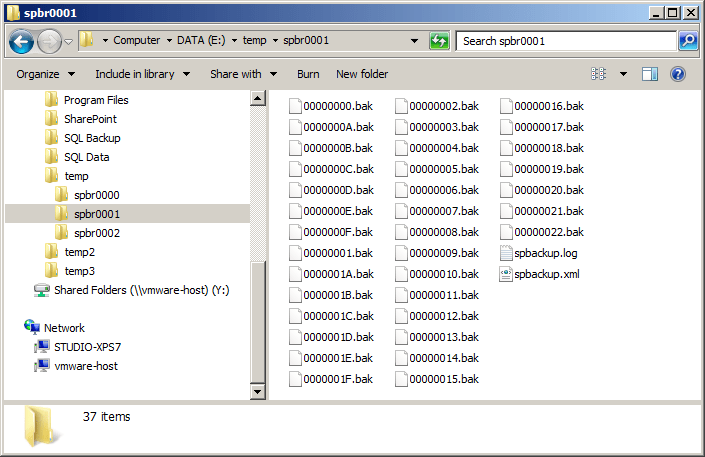
If you browse the folder containing the backup set that is generated from a configuration-only backup, you’ll see the expected array of sequentially numbered hexadecimal .bak files, as well as a log file (spbackup.log) and backup component hierarchy file (spbackup.xml).

config-only_backup_set

The .bak files themselves contain XML-serialized representations of various farm objects that were captured during the configuration backup process:

[sourcecode language=”xml” wraplines=”false”]<object type="Microsoft.Office.Server.Administration.DiagnosticsService, Microsoft.Office.Server, Version=14.0.0.0, Culture=neutral, PublicKeyToken=71e9bce111e9429c">
<fld type="System.Collections.Hashtable, mscorlib, Version=2.0.0.0, Culture=neutral, PublicKeyToken=b77a5c561934e089" name="m_Throttles" />
<fld name="m_Versions" type="null" />
<fld name="m_UpgradeContext" type="null" />
<fld type="System.Collections.Hashtable, mscorlib, Version=2.0.0.0, Culture=neutral, PublicKeyToken=b77a5c561934e089" name="m_UpgradedPersistedFields" />
<fld name="m_Properties" type="null" />
<sFld type="String" name="m_LastUpdatedUser">SPDC\s0ladmin</sFld>
<sFld type="String" name="m_LastUpdatedProcess">psconfigui (4228)</sFld>
<sFld type="String" name="m_LastUpdatedMachine">SPDEV</sFld>
<sFld type="DateTime" name="m_LastUpdatedTime">2010-04-25T17:38:27</sFld>
</object>[/sourcecode]

Again, this is all very similar to a standard catastrophic farm backup.  The one notable absence in the backup set that is produced during a configuration-only backup is that of SQL Server database backup files that begin (internally) with a telltale TAPE header.  The absence of these files is expected, though, since configuration-only backups operate on farm configuration settings and metadata – not the content and other data that is housed primarily in SQL Server databases.

“Wait,” you might be saying, “service applications typically have quite a bit of configuration data, and much of that data is housed in SQL Server databases.  Wouldn’t those databases be captured by the configuration-only backup process?”  Hold that question – I’ll be addressing it in a short bit.

A Quick Peek At What’s Going On Under The Hood

To better understand how configuration-only backup and restore works, it helps to dive below the backup set and into the SharePoint object model to see what’s actually happening.  If you’re not a developer, no worries – I’ll try to keep this simple.

The type that is the backbone of configuration-only backup and restore operations is the IBackupRestoreConfiguration interface.  Classes in the SharePoint object model can implement this interface (and supply a CanBackupRestoreAsConfiguration property value of true) if they wish to meet the bare minimum requirements for inclusion in configuration-only backup and restore operations.

If you’ve worked with catastrophic backup and restore in the SharePoint object model before, this interface name may seem a little familiar to you – even if it isn’t.  That’s because extending the native catastrophic backup and restore functionality of SharePoint to include new content classes is done through the similarly named IBackupRestore interface.  IBackupRestore came before IBackupRestoreConfiguration, and the latter is actually derived from the former.  The patterns of interaction between the runtime backup objects and objects that implement these two interfaces is very similar – as you might expect given their inheritance relationship.

So you might be wondering, “So what?  I don’t plan to build configuration-only backup and restore-capable components.  Why are you going through all of this.”  The answer to that question is relatively easy to answer: we can get a pretty clear understanding of what is actually included in configuration-only backup and restore operations by looking at the SharePoint classes that implement the IBackupRestoreConfiguration interface.

Hold onto the concept of examining types that implement IBackupRestoreConfiguration; we’ll be coming back to it in just a second.

What Does A Configuration-Only Backup Actually Capture? – Part 1

Let’s leave the SharePoint object model and come back up to ground level for a moment.

In plain English, configuration-only backup and restore is basically supposed to address the “I need to create a template of my farm” pain point we felt with SharePoint 2007.  Does it?  What gap is filled by the capability according to Microsoft?

If you read the TechNet article I linked to earlier, you’ll find just five types of settings (or configuration data items) that are actually listed as included in a configuration-only backup:

  • Antivirus
  • Information rights management (IRM)
  • Outbound e-mail settings (only restored when performing an "overwrite").
  • Customizations deployed as trusted solutions
  • Diagnostic logging

I don’t know about you, but this doesn’t exactly line up too well with the list of things I’d want to replicate from Farm A to Farm B if I were actually trying to clone Farm A configuration settings.  Don’t get me wrong: several of the items listed are things I would want to bring across (especially the customizations in the farm solution store), but there are a whole host of additional things I’d want to see.

What Does A Configuration-Only Backup Actually Capture? – Part 2

The five bullet points I just supplied aren’t entirely well-defined, and they’re more than a little “light” in terms of farm configuration data.  Let’s define the list a bit more clearly by seeing which classes in the SharePoint object model actually implement the required IBackupRestoreConfiguration interface.

When I fire-up Reflector and analyze the types that use the IBackupRestoreConfiguration interface, I come up with the following classes (ignoring the SPBackupRestore type, since its ImplementsIBackupRestoreConfiguration method only checks to see whether or not other objects themselves actually implement the interface):

  • Microsoft.SharePoint.Administration.SPDiagnosticsServiceBase
  • Microsoft.SharePoint.Administration.SPFarm
  • Microsoft.SharePoint.Administration.SPResourceMeasure
  • Microsoft.SharePoint.Administration.SPSolution
  • Microsoft.SharePoint.Administration.SPSolutionCollection
  • Microsoft.SharePoint.Administration.SPSolutionLanguagePack
  • Microsoft.SharePoint.Administration.SPUserCodeExecutionTier
  • Microsoft.SharePoint.Administration.SPUserCodeLoadBalancerProvider
  • Microsoft.SharePoint.Administration.SPUserCodeProvider
  • Microsoft.SharePoint.Administration.SPUserCodeService
  • Microsoft.SharePoint.Administration.SPWebService
  • Microsoft.SharePoint.UserCode.SPSolutionValidator

Each of these classes is capable of participating in a configuration-only backup because it implements IBackupRestoreConfiguration.  The list is longer than the five bullets I mentioned earlier, but many of the classes cited can be grouped into common areas of functionality.  The SPSolution, SPSolutionCollection, and SPSolutionLanguagePack types are associated with trusted solutions (the farm solution store), for example, while the SPDiagnosticsServiceBase type is tied to trace log and event throttling management (i.e., diagnostic logging).  A simple one-to-one mapping between classes and settings areas (that you might find in Central Administration) doesn’t actually exist.

Identifying what is included in a configuration-only backup isn’t quite a quick and easy affair.

What Doesn’t A Configuration-Only Backup Capture?

Sometimes it’s simply easier to talk about what a thing isn’t rather than what it is.  As you’re probably coming to see, configuration-only backup and restore is one of those things.

For those who hoped that configuration-only backup and restore would deliver us to the promised land of SharePoint farm templates and full configuration replication, the first signs of trouble in paradise come by reading the implementation notes for the IBackupRestoreConfiguration interface.  In essence they state that you shouldn’t be implementing the interface to capture configuration settings unless the following three conditions are true for the settings in question:

  1. The settings you’re trying to preserve are only configuration settings – not content like lists, documents, etc.
  2. The settings you want to capture are scoped to the entire farm or the Content Publishing Web Service (i.e., they apply equally to all non-Central Admin Web applications and the site collections contained within them – not to just a subset)
  3. The settings aren’t tied to server names or your specific SharePoint farm topology

That list starts “simple” and ends “rough.”  With those three bullets, we can instantly rule-out configuration data that is tied to individual Web applications, content databases, site collections, and everything else below them.  Configuration-only backup and restore won’t protect your per-Web application settings, either, including alternate access mappings (AAMs).

I’m making a special point of highlighting AAMs because configuration-only backup and restore was initially advertised as being capable of capturing these mappings.  Sure, you can view AAMs within Central Administration and may think that they’re maintained at the farm level, but they aren’t – they’re tied to specific Web applications.  AAMs for a Web application are represented (within the object model) as an instance of the SPAlternateUrlCollection class.  The SPAlternateUrlCollection isn’t on the list of IBackupRestoreConfiguration implementers provided earlier, nor are its parent types (most notably the SPWebApplication type through its AlternateUrls property).  Net effect: it isn’t included in configuration-only backup and restore operations.

Since cloning a SharePoint farm usually involves taking it from one environment to another, bullet #3 is a rather big sticking point, as well.  Configuration-only backup and restore won’t handle anything that includes a server name, IP address, or any other environmentally-dependent setting.  The reason is pretty simple – how would SharePoint know how to actually re-wire that stuff (in a new environment) on restore?

Ouch.

Okay, What About Service Applications?

The Service Application Framework is new to SharePoint 2010, and it represents a major step forward in correcting many of the performance, configuration, and scalability limits of MOSS 2007’s shared service provider (SSP) model.  If you’ve touched SharePoint 2010 in any form, chances are you’ve at least stumbled into service applications in some form.  Examples include the Managed Metadata Service, Business Data Connectivity (BCS) Services, and Search.

Although the Service Application Framework has been engineered to participate in normal (content+configuration) catastrophic backup and restore operations, it doesn’t do so through the standard IBackupRestore interface.  Developers of service application and related classes can adorn their classes with a couple of different attributes (IisWebServiceApplicationBackupBehaviorAttribute and IIsWebServiceApplicationProxyBackupBehaviorAttribute – not exactly “short and sweet” in the name department), and they get backup and restore integration as a freebie.  This is a big relief for developers, because properly implementing the IBackupRestore interface in their classes is anything but trivial.

There is a downside to the attribute-based backup and restore approach as its implemented, though: the Service Application Framework simply doesn’t participate in configuration-only backup and restore.  When you execute a configuration-only backup, you won’t capture any configuration data tied to search, BCS, managed metadata, web analytics, Excel services, or any of the other service applications.

Double ouch.

The Verdict On Configuration-Only Backup And Restore

I’ll start by apologizing if this post dashed your hopes.  Believe me when I say that I had very high hopes for configuration-only backup and restore, as well.  Cloning farms by hand is painful work; I’ve done it enough times to know that much.

Since configuration-only backup and restore doesn’t actually cover any configuration data tied to service applications and individual Web applications, cloning a farm in SharePoint 2010 is still going to be a largely manual affair.  Scripting can (and probably should) play a large role, and so will documentation.

There, I said it – the ugly “d” word.  Documentation.

Documentation continues to play a big role in capturing configuration data in SharePoint 2010, but that doesn’t mean you have to resort to taking notes or capturing screenshots en masse.

Microsoft has (indirectly) acknowledged that configuration-only backup and restore isn’t going to round up all of our desired configuration settings, and they’ve attempted to lend us a hand through some PowerShell scripting.  If you haven’t yet reviewed Microsoft’s farm documentation script on TechNet, I highly recommend that you check it out.  Saying that the script’s treatment of farm configuration data is “extensive” is kind of like saying that a tsunami is a “big wave” – it doesn’t do it justice.

I also want to be clear and say that despite the limitations I’ve described, I still think that configuration-only backup and restore is worth some serious investigation for anyone trying to do template creation, cloning, and disaster recovery work.  Given my focus on disaster recovery, for example, the ability to get a farm’s solution store backed-up in a form that can be restored easily at a later time is a huge benefit – one that would really ease the process of farm recovery in a true disaster scenario.

Additional Resources and References

  1. Book: SharePoint 2010 Disaster Recovery Guide
  2. Netcast: Todd Klindt’s Netcast 54
  3. Blog: Benjamin Athawes’ Tales from a SharePoint Farm
  4. Blog: Bill Baer’s TechNet Blog
  5. TechNet: Backup and recovery overview (SharePoint 2010)
  6. API: IBackupRestoreConfiguration
  7. API: IBackupRestore
  8. Product: Red Gate’s Reflector
  9. MSDN: What’s New: Service Application Framework
  10. TechNet: Document Farm Configuration Settings (PowerShell Script)

The SharePoint Summer Whirlwind Tour

The rest of this summer is a busy one for me, and it is chock-full of SharePoint presentation events. In this blog post, I discuss my upcoming SharePoint Saturday event schedule as well as a webcast I’ll be delivering in the middle of August.

I just finished writing the conclusion for the SharePoint 2010 Disaster Recovery Guide, so it’s safe to say that the marathon writing and revising sessions are nearing an end.  Book writing is one of those things that most people don’t do, so it’s hard to describe the feeling that comes when you truly internalize the realization that the light at the end of the tunnel isn’t another oncoming train.  To me, it means that I may once again have some free time to spend time with my family, play videogames, take care of some much-needed home network maintenance, and actually work on some cool SharePoint projects.

The end of the book couldn’t have come a moment sooner, either, because it seems that I’m about to launch into what I’m starting to jokingly call my “SharePoint Summer Whirlwind Tour.”

SharePoint Saturday New York

SharePoint Saturday New York The first stop on my tour is the Big Apple.  SharePoint Saturday New York will be held on Saturday, July 31st, at the Microsoft office in Manhattan.  The event “sold-out” in almost no time at all, and it is currently wait-listed about 80 people deep based on what I saw from some recent tweets on Twitter.

The event is scheduled with a whopping nine concurrent tracks, so there will be plenty of SharePoint goodness for everyone in attendance.  I’ll be presenting on SharePoint disaster recovery for both SharePoint 2007 and SharePoint 2010 with “Saving SharePoint,” so stop in to see me if you want to talk about DR!

Since Idera is sponsoring the event, I’ll also be in and around the Idera booth answering questions, showing off our backup tools, and hopefully meeting some of the local SharePoint community.  It should be a lot of fun!

SharePoint Saturday Denver

SharePoint Saturday Denver

The week after SharePoint Saturday New York is SharePoint Saturday Denver in (surprise) Denver, Colorado, on August 7th.  The folks organizing SharePoint Saturday Denver have planned for six tracks: two for architecture, two for development, one for admins/IT pros, and one for end users/decision makers.  I feel fortunate in that I’ll be delivering two presentations in the admin/IT pro track.  The first is “Saving SharePoint” (on SharePoint disaster recovery), and the second is titled “’Caching-In’ for SharePoint Performance.”

“’Caching-In for SharePoint Performance” is a relatively new session that I put together a while ago based on a lot of the experience I gained while consulting for a “particular” client, and it dives into the platform caching mechanisms that are built into SharePoint.  The abstract sums it up pretty well.

Caching is a critical variable in the SharePoint scalability and performance equation, but it’s one that’s oftentimes misunderstood or dismissed as being needed only in Internet-facing scenarios. In this session, we’ll build an understanding of the caching options that exist within the SharePoint platform and how they can be leveraged to inject some pep into most SharePoint sites. We’ll also cover some sample scenarios, caching pitfalls, and watch-outs that every administrator should know.

Quite a few folks from Idera will be present at the event, and since we’re a sponsor, we’ll have a booth.  In between sessions, I’m sure I’ll be milling around in and around the booth if I’m not in another session.

I’m particularly excited about the Denver event because it represents a chance to interact with a portion of the SharePoint community I don’t see or talk to very often.  The folks putting on the event are a top-notch group in my mind, and many of the speakers are folks I’ve wanted to meet for some time.

SharePoint Saturday Columbus

SharePoint Saturday Columbus The SharePoint Saturday tour concludes for a while (for me, anyway) with SharePoint Saturday Columbus on August 14th, 2010, in Columbus, Ohio.  This particular SharePoint Saturday is special to me because I’m a member of the committee that is currently working to put the event together.

We have some fantastic sessions lined up, and I’ll be delivering “Saving SharePoint” in one of the IT pro session slots throughout the day.  For those of you who are in and around the Cincinnati, Columbus, and Cleveland areas, I hope you’ll show up for a great day of SharePoint sessions and community connection building!  You can sign up for the event with this Eventbrite link.

Idera is a sponsor for the event and will have a booth.  I’m sure I’ll be in and around the booth, but being both a speaker and an organizer means that I’ll probably be doing quite a bit of extra running around, too.

Secrets of SharePoint Webcast

sos “But wait, there’s more!”  I’m imagining one of those old made-for-TV gadget commercials from many years ago as I typed that …

The Wednesday after SharePoint Saturday Columbus (August 18th), I’ll be delivering a webcast for Idera as part of their Secrets of SharePoint series.  Idera regularly seeks the help of SharePoint community members to give webcasts, and John Ferringer and I actually delivered one of these titled “SharePoint Disaster Recovery Essential Guidelines” back in 2009.

On August 18th, though, I’ll be delivering a new webcast titled “SharePoint 2010 and Your DR Plan: New Capabilities, New Possibilities!”  The webcast will focus on new and improved elements in the SharePoint 2010 platform that either simplify or extend disaster recovery planning and implementation options.  Here’s the abstract for the webcast:

SharePoint 2010 is here, and many organizations are hard at work building their implementation roadmap.  Some organizations are starting fresh with SharePoint 2010 while many others are contemplating a migration strategy from SharePoint 2007.  Regardless of how an organization arrives at SharePoint 2010, disaster recovery planning for their SharePoint environment is something that must be included to ensure the protection of their data and the continuity of business operations.

Microsoft made significant enhancements to the disaster recovery landscape with SharePoint 2010, and in this webcast we’ll be taking a good look at many of those of new features.  We’ll dive inside enhancements to the existing backup and restore capabilities that were present in the SharePoint 2007 platform to see what has changed and been enhanced.  We’ll also look at many of the exciting new capabilities that have been integrated into the SharePoint 2010 platform, such as unattended content database recoveries, SQL Server snapshot integration, and configuration-only backup and restore.  By the time we’re done, you will possess a solid understanding of how the disaster recovery landscape has changed for the better with SharePoint 2010.

If you’re free at 1pm EDT (12pm CDT) on August 18th, I encourage you to sign up and listen.  Just like the SharePoint Saturday events, there is no charge to attend the webcast.  Just sign up and you’re ready to go!

And After That?

After that, I’ll be cooling my jets for a while and taking a much-needed break to remind my kids of what their father looks like.  There are many backlogged blog posts I’ve been planning to write, though, so hopefully I’ll be able to start sharing more soon!

Additional Resources and References

  1. Book: SharePoint 2010 Disaster Recovery Guide
  2. Event: SharePoint Saturday New York
  3. Presentation: Saving SharePoint (at SPS NY)
  4. Company: Idera
  5. Event: SharePoint Saturday Denver
  6. Event: SharePoint Saturday Columbus
  7. Sign-up: Eventbrite link for SharePoint Saturday Columbus
  8. Webcast: SharePoint Disaster Recovery Essential Guidelines
  9. Webcast: SharePoint 2010 and Your DR Plan: New Capabilities, New Possibilities!

Site Collection Backups and Workflow Portability in SharePoint 2010

In this post, I discuss my quest to determine whether or not site collection backups properly capture workflow information in SharePoint 2010. TechNet made a point of saying they didn’t, but Joel Oleson said they did. Who was right?

Do you trust TechNet?  I generally do, as I figure the good folks at Microsoft are doing their best to disseminate reliable information to those of us working with their products.  As I recently learned, though, even the information that appears on TechNet needs some cross-checking once in a while.

Bear with me, as this post is equal parts narrative and data discussion.  If you don’t like stories and want to cut straight to the chase, though, simply scroll down to the section titled “The Conclusion” for the key takeaway.

Site Collection Backup Primer

For those who aren’t overly familiar with site collection backups, it’s probably worth spending a moment discussing them a bit before going any further.  Site collection backups are, after all, at the heart of this blog post.

What is a site collection backup?  It is basically what you would expect from its name: a backup of a specific SharePoint site collection.  These backups can be used to restore or overwrite a site collection if it becomes lost or corrupt, and they can also be used to copy site collections from one web application (or farm) to another.

Anytime you execute one of the following operations, you’re performing a site collection backup:

  • from the command line: STSADM.exe –o backup –url <url> –filename <filename>
  • through PowerShell in SharePoint 2010: Backup-SPSite <url> –Path <filepath>
  • Using the “Perform a site collection backup” link in SharePoint 2010 Central Administration

When a site collection backup is executed, a single file with a .bak extension is generated that contains the entire contents of the site collection targeted.  This file can be freely copied and moved around as needed.  Aside from some recommendations regarding the maximum size of the site collection captured using this approach (15GB and under in SharePoint 2007, 85GB and under in SharePoint 2010), the backups themselves are really quite handy for both protection and site collection migration operations.

A Little Background

John Ferringer and I have been plugging away at the SharePoint 2010 Disaster Recovery Guide for quite some time.  As you might imagine, the writing process involves a lot of research, hands-on experimentation, and fact-checking.  This is especially true for a book that’s being written about a platform (SharePoint 2010) that is basically brand new in the marketplace.

While researching backup-related changes for the book, I made a special mental note of the following change regarding site collection backups in SharePoint 2010:

Site Collection Backups and Workflow

The text that is circled in the image above (taken straight from a TechNet page titled Backup and recovery overview (SharePoint Server 2010)) says this:

Workflows are not included in site collection backups

This stuck with me when I read it, because I hadn’t recalled any such statement being made with regard to site collection backups in SharePoint 2007.  Since Microsoft made a special note of pointing out this limitation for SharePoint 2010, though, I figured it was important to keep in mind.  Knowing that workflows had changed from 2007 to 2010, I reasoned that the new limitation was probably due to some internal workflow plumbing alterations that adversely affected the backup process.

The Setup

A couple of weeks back, I was presenting at SharePoint Saturday Ozarks alongside an awesome array of other folks (including Joel Oleson) from the SharePoint community.  Due to a speaker no-show in an early afternoon slot, Mark Rackley (the event’s one-man force-of-nature organizer) decided to hold an “ask the experts” panel where attendees could pitch questions at those of us who were willing to share what we knew.

A number of good questions came our way, and we all did our best to supply our experiences and usable advice.  Though I don’t recall the specific question that was asked in one particular case, I do remember advising someone to perform a site collection backup before attempting to do whatever it was they wanted to do.  After sharing that advice, though, things got a little sketchy.  The following captures the essence of the exchange that took place between Joel and me:

Me: <to the attendee> Site collection backups don’t capture everything in SharePoint 2010, though, so be careful.

Joel: No, site collection backups are full-fidelity.

Me: TechNet specifically indicates that workflows aren’t covered in site collection backups with SharePoint 2010.

Joel: No, the backups are still full fidelity.

Me: <blank stare>

The discussion topic and associated questions for the panel quickly changed, but my brain was still stripping a few gears trying to reconcile what I’d read on TechNet with what Joel was saying.

After the session, I forwarded the TechNet link I had quoted to Joel and asked if he happened to have an “inside track” or perhaps some information I didn’t have access to.  We talked about the issue for a while at the hotel a little later on, but the only thing that we could really conclude was that more research was needed to see if site collection backups had in fact changed with SharePoint 2010.  Before taking off that weekend, we decided to stay in contact and work together to get some answers.

Under The Hood

To understand why this issue bothered me so much, remember that I’m basically in the middle of co-authoring a book on the topic of disaster recovery – a topic that is intimately linked to backup and restore operations.  The last thing I would ever want to do is write a book that contains ambiguous or (worse) flat-out wrong information about the book’s central topic.

To get to the heart of the matter, I decided to start where most developers would: with the SharePoint object model.  In both SharePoint 2007 and SharePoint 2010, the object model types that are used to backup and export content typically fall into one of two general categories:

  • Catastrophic Backup and Restore API.  These types are located in the Microsoft.SharePoint.Administration.Backup namespace, and they provide SharePoint’s full-fidelity backup and restore functions.  Backup and restore operations take place on content components such as content databases, service applications, and the entire SharePoint farm.  Catastrophic backup and restore operations are full-fidelity, meaning that no data is lost or selectively ignored during a backup and subsequent restore.  By default, catastrophic backup and restore operation don’t get any more granular than a content database.  If you want to protect something within a content database, such as a site collection, sub-site, or list, you have to backup the entire content database containing the target object(s).
  • Content Deployment API.  The member types of this API (also known internally at Microsoft as the PRIME API) reside within the Microsoft.SharePoint.Deployment namespace and are used for granular content export and import operations.  The exports that are created by the types in this namespace target objects from the site collection level all the way down to the field level – typically webs, lists, list items, etc.  Content Deployment exports are not full-fidelity and are commonly used for moving content around more than they are for actual backup and restore operations.

So, where does this leave site collection backups?  In truth, site collection backups don’t fit into either of these categories.  They are a somewhat unusual case, both in SharePoint 2007 and SharePoint 2010.

Whether a site collection backup is initiated through STSADM, PowerShell, or Central Administration, a single method is called on the SPSiteCollection type which resides in the Microsoft.SharePoint.Administration namespace.  This is basically the signature of the method:

SPSiteCollection.Backup(string strSiteUrl, string strFilename, bool bOverwrite)

To carry out a site collection backup, all that is needed is the URL of the site collection, the filename that will be used for the resultant backup file, and a TRUE or FALSE to indicate whether an overwrite should occur if the selected file already exists.

If you were to pop open Reflector and drill into the Backup method on the SPSiteCollection type, you wouldn’t get very far before running into a wall at the SPRequest type.  SPRequest is a managed wrapper around the take-off point for a whole host of external calls, and the execution of the Backup method is actually handled in unmanaged legacy code.  Examining the internals of what actually takes place during a site collection backup (or restore, for that matter) simply isn’t possible with Reflector.

Since the internals of the Backup method weren’t available for reflective analysis, I was forced to drop back and punt in order to determine how site collection backups and workflow interacted within SharePoint 2010.

Testing Factors

I knew that I was going to have to execute backup and restore tests at some point; I was just hoping that I would be a bit more informed (through object model inspection) about where I needed to focus my efforts.  Without any visibility into the internals of the site collection backup process, though, I didn’t really have much to start with.

Going into the testing process, I knew that I wasn’t going to have enough time to perform exhaustive testing for every scenario, execution path, variable, and edge-case that could be relevant to the backup and restore processes.  I had to develop a testing strategy that would hit the likely problem areas as quickly (and with as few runs) as possible.

After some thought, I decided that these points were important facets to consider and account for while testing:

  • Workflow Types.  Testing the most common workflow types was important.  I knew that I would need to test at least one out of the box (OOTB) workflow type.  I also decided that I needed to test at least one instance of each type of workflow that could be created through SharePoint Designer (SPD) 2010; that meant testing a list-bound workflow, a site collection workflow, and a reusable workflow.  I decided that custom code workflows, such as those that might be created through Visual Studio, were outside the scope of my testing.
  • Workflow Data.  In order to test the impact of backup and restore operations on a workflow, I obviously had to ensure that one or more workflows were in-place within the site collection targeted for backup.  Having a workflow attached to a list would obviously test the static data portions of the workflow, but there was other workflow-related data that had to be considered.  In particular, I decided that the testing of both workflow history information and in-process workflow state were important.  More on the workflow state in a bit …
  • Backup and Restore Isolation.  While testing, it would be important to ensure that backup operations and restore operations impacted one another (or rather, had the potential to impact one another) as little as possible.  Though backups and restores occurred within the same virtual farm, I isolated them to the extent that I could.  Backups were performed in one web application, and restores were performed in a separate web application.  I even placed each web application in its own (IIS) application pool – just to be sure.  I also established a single VM snapshot starting point; after each backup and restore test, I rolled back to the snapshot point to ensure that nothing remained in the farm (or VM, for that matter) that was tied to the previous round of testing.

Testing Procedure

I created a single Publishing Portal, bolted a couple of sub-sites and Document Libraries into it, and used it as the target for my site collection backup operations.  The Document Library that I used for workflow testing varied between tests; it was not held constant and did change according to the needs of each specific test.

I ran four different workflow test scenarios.  My OOTB workflow scenario involved testing the page approval workflow for publishing pages.  My other three SPD workflow tests (list-bound, site collection, and reusable workflow) all involved the same basic set of workflow steps:

  1. Wait five minutes
  2. Create a To Do item (which had to be completed to move on)
  3. Wait five more minutes
  4. Add a comment to the workflow target

In both the OOTB workflow and SPD workflow scenarios, I wanted to perform backups while workflows were basically “in flight” to see how workflow state would or wouldn’t be impacted by the backup and restore processes.  For the publishing approval workflow, this meant taking a site collection backup while at least one page was pending approval.  For the SPD workflows, it meant capturing a backup while at least one workflow instance was in a five minute wait period and another was waiting on the completion of the To Do item.

Prior to executing a backup in each test case, I ran a couple of workflow instances from start to finish.  This ensured that I had some workflow history information to capture and restore.

Once site collection backups were captured in each test case, I restored them into the empty web application.  I then opened the restored site collection to determine what did and didn’t get transcribed through the backup and restore process.

Results Of Testing

In each workflow case (OOTB and all three SPD workflows), all workflow information that I could poke and prod appeared to survive the backup and restore process without issue.  Workflow definition data was preserved, and workflow history came over intact.  Even more impressive, though, was the fact that in-process workflow state was preserved.  SPD workflow steps that were in the middle of a wait period when a backup was taken completed their wait period after restore and moved on.  To Do items that were waiting for user intervention continued to wait and then proceeded to the next step when they were marked as completed in the restored site collection.

In addition, new instances of each workflow type could be created and started in both site collections following the backup and restore operations.  The backup and subsequent restore didn’t appear to have any effect on either the source or destination.

Though my testing wasn’t exhaustive, it did cast a doubt on the absolute nature of the statement made on TechNet regarding site collection backups failing to include workflows.

Joel’s Legwork

While I was conducting my research and testing, Joel was leveraging his network of contacts and asking folks at Microsoft for the real story behind site collection backups and workflow.  He made a little progress with each person he spoke to, and in the end, he managed to get someone to go on the record.

The Conclusion

The official word from Microsoft is that the TechNet note indicating that site collection backups don’t include workflows is a misprint.  In reality, the point that should have been conveyed through TechNet was that content exports (via the Content Deployment API) don’t include workflows – a point that is perfectly understandable considering that the Content Deployment API doesn’t export or import with full-fidelity.  Microsoft indicated that they’ll be correcting the error, and TechNet may have been corrected by the time you read this.

My takeaway on this: if something on TechNet (or anywhere else on the web) doesn’t quite add up, it never hurts to test and seek additional information from others in the community who are knowledgeable on the subject matter.  In this case, it made a huge difference.

Additional Resources and References

  1. Blog: John Ferringer
  2. Book: SharePoint 2010 Disaster Recovery Guide
  3. TechNet: Backup and recovery overview (SharePoint Server 2010)
  4. Event: SharePoint Saturday Ozarks
  5. Blog: Joel Oleson
  6. Blog: Mark Rackley
  7. Tools: Reflector

Upcoming Events (June 2010)

This post introduces SharePoint Saturday Columbus which will be taking place on August 14, 2010. Several of us are putting the event together, and we’re seeking both speakers and sponsors. I will also be speaking at SharePoint Saturday Ozarks this Saturday, June 12th, and delivering my new talk titled “‘Caching-In’ for SharePoint Performance.”

The last couple of months have been exceptionally busy, so this blog hasn’t been getting the attention it deserves.  All of my time has been spent writing chapters for the SharePoint 2010 Disaster Recovery Guide that John Ferringer and I are putting together.  The good news is that John and I have rounded the bend and are heading towards home on completion of the book, so I will be getting back to blogging about topics of greater substance towards the middle of the summer.

Announcing SharePoint Saturday Columbus!

SharePoint Saturday Columbus on August 14, 2010! Yesterday we (the planning committee) announced that SharePoint Saturday Columbus will be taking place at the Conference Center at OCLC in Dublin, Ohio on August 14th, 2010.  For those of you not familiar with the central Ohio region, Dublin is just a northern part of the Columbus area.

Brian Jackett, Jennifer Mason, Nicola Young, and I have been pulling the pieces together over the last several months, and we finally have enough done that we can announce the event.  We’re very excited to be bringing a SharePoint Saturday event to this region of the Midwest!

We are actively seeking both speakers and sponsors for the event.  If you or someone you know falls into either or both of these categories, please head out to the SharePoint Saturday Columbus site for sponsorship information, session submission forms, and other resources.  You can also follow @SPSColumbus on Twitter for more information and announcements in the time leading up to the event.

Speaking of SharePoint Saturdays …

SharePoint Saturday Ozarks

SharePoint Saturday Ozarks on June 12, 2010 It’s funny to think that the whole SharePoint Saturday experience started about a year ago for me.  I’ll be going back to the scene of the crime this weekend when I head to Harrison, Arkansas, for SharePoint Saturday Ozarks.

Mark Rackley is reminding the SharePoint community that he is a force of nature by putting all the pieces together to make this event happen.  Most SharePoint Saturday events have an organizing committee, but Mark plays all the instruments in this band.  It’s simply amazing.

This time around, I’ll actually be delivering a session on something other than SharePoint disaster recovery.  The session is titled “’Caching-In’ for SharePoint Performance,” and it’s a new one for me.  I’m really looking forward to giving the talk, because caching within SharePoint is something I am both passionate about and have deep experience with.  Here’s the abstract for my session:

Caching is a critical variable in the SharePoint scalability and performance equation, but it’s one that’s oftentimes misunderstood or dismissed as being needed only in Internet-facing scenarios.  In this session, we’ll build an understanding of the caching options that exist within the SharePoint platform and how they can be leveraged to inject some pep into most SharePoint sites.  We’ll also cover some sample scenarios, caching pitfalls, and watch-outs that every administrator should know.

If you happen to be in the Harrison, AR region on Saturday, June 12th, swing by the North Arkansas College.  There will be one heck of a SharePoint party going on!

Additional Resources and References

  1. Book: SharePoint 2010 Disaster Recovery Guide
  2. Blog: John Ferringer
  3. Event: SharePoint Saturday Columbus
  4. Location: The Conference Center at OCLC
  5. Blog: Brian Jackett
  6. Blog: Jenniffer Mason
  7. Blog: Nicola Young
  8. Twitter: @SPSColumbus
  9. Event: SharePoint Saturday Ozarks
  10. Blog: Mark Rackley