Wrapping Up 2011

After some time away, I’m getting back to blogging with a recap of the last several months’ worth of events. I cover a couple of SharePoint Saturdays, a webcast, my new whitepaper, and a new CodePlex project for SharePoint administrators.

Over the last several months, I haven’t been blogging as much as I’d hoped to; in reality, I haven’t blogged at all. There are a couple of reasons for that: one of them was our recent house move (and the aftermath), and the other was a little more personal. Without going into too much detail: we were contending with a very serious health issue in our family, and that took top priority.

The good news is that the clouds are finally parting, and I’m heading into the close of 2011 on a much better note (and with more time) than I’ve spent the last several months. To get back into some blogging, I figured I’d wrap-up the last several months’ worth of activities that took place since SharePoint Saturday Columbus.

Secrets of SharePoint (SoS) Webcast

Secrets of SharePoint Webcast BannerA lot of things started coming together towards the end of October, and the first of those was another webcast that I did for Idera titled “’Caching-In’ for SharePoint Performance.” The webcast covered each of SharePoint’s built-in caching mechanisms (object caching, BLOB caching, and page output caching) as well as the Office Web Applications’ cache. I provided a rundown on each mechanism, how it worked, how it could be leveraged, and some watch-outs that came with its use.

The webcast was basically a lightweight version (40 minutes or so) of the longer (75 minute) presentation I like to present at SharePoint Saturday events. It was something of a challenge to squeeze all of the regular session’s content into 40 minutes, and I had to cut some of the material I would have liked to have kept in … but the final result turned-out pretty well.

If you’re interested in seeing the webcast, you can watch it on-demand from the SoS webcast archive. I also posted the slides in the Resources section of this blog.

SharePoint Saturday Cincinnati

SharePoint Cincinnati BannerOn Saturday October 29th, Cincinnati had its first-ever SharePoint Saturday Cincinnati event. The event took place at the Kingsgate Marriott on Goodman Drive (near University Hospital), and it was very well attended – so much so that Stacy Deere and the other folks who organized the event are planning to do so again next year!

Many people from the local SharePoint community came out to support the event, and we had a number of folks from out of town come rolling in as well to help ensure that the event was a big success. I ended up delivering two sessions: my “’Caching-In’ for SharePoint Performance” session and my “SharePoint 2010 Disaster Recovery: New Capabilities, New Possibilities!”

I had a great time at the event, and I’m hoping I’ll be fortunate enough to participate again on the next go ‘round!

New Disaster Recovery WhitePaper

WhitePaper Title PageMy co-author and good friend John Ferringer and I were hard at work throughout the summer and early Fall putting together a new disaster recovery whitepaper for Idera. The whitepaper is titled “New Features in SharePoint 2010: A Disaster Recovery Love Story,” and it’s a bromance novel that only a couple of goofballs like John and I could actually write …

Okay, there’s actually no romance in it whatsoever (thank heavens for prospective readers – no one needs us doing that to them), but there is a solid chunk of coverage on SharePoint 2010’s new platform capabilities pertaining to disaster recovery. We also review some disaster recovery basics in the whitepaper, cover things that have changed since SharePoint 2007, and identify some new watch-out areas in SharePoint 2010 that could have an impact on your disaster recovery planning.

The whitepaper is pretty substantial at 13 pages, but it’s a good read if you want to understand your platform-level disaster recovery options in SharePoint 2010. It’s a free download, so please grab a copy if it sounds interesting. John and I would certainly love to hear your feedback, as well.

SharePoint Backup Augmentation Cmdlets (SharePointBAC)

SharePointBACMany of my friends in the SharePoint community have heard me talk about some of the projects I’ve wanted to undertake to extend the SharePoint platform. I’m particularly sensitive to the plight of the administrator who is constrained (typically due to lack of resources) to use only the out-of-the-box (OOTB) tools that are available for data protection. While I think the OOTB tools do a solid job in most small and mid-size farms scenarios, there are some clear gaps that need to be addressed.

Since I’d been big on promises and short on delivery in helping these administrators, I finally started on a project to address some of the backup and restore gaps I see in the SharePoint platform. The evolving and still-under-development result is my SharePoint Backup Augmentation Cmdlets (SharePointBAC) project that is available on CodePlex.

With the PowerShell cmdlets that I’m developing for SharePoint 2010, I’m trying to introduce some new capabilities that SharePoint administrators need in order to make backup scripting with the OOTB tools a simpler and more straightforward experience. For example, one big gap that exists with the OOTB tools is that there is no way to groom a backup set. Each backup you create using Backup-SPFarm, for instance, adds to the backups that existed before it. There’s no way to groom (or remove) older backups you no longer want to keep, so disk consumption grows unless manual steps are taken to do something about it. That’s where my cmdlets come in. With Remove-SPBackupCatalog, for example, you could trim backups to retain only a certain number of them; you could also trim backups to ensure that they consume no more disk space (e.g., 100GB) than you’d like.

The CodePlex project is in alpha form right now (it’s brand spankin’ new), and it’s far from complete. I’ve already gotten some great suggestions for what I could do to continue development, though. When I combine those ideas with the ones I already had, I’m pretty sure I’ll be able to shape the project into something truly useful for SharePoint administrators.

If you or someone you know is a SharePoint administrator using the OOTB tools for backup scripting, please check out the project. I’d really love to hear from you!

SharePoint Saturday Denver

SharePoint Saturday DenverAs I type this, I’m in Colorado at the close of the third (annual) SharePoint Saturday Denver event. This year’s event was phenomenal – a full two days of SharePoint goodness! Held on Friday November 11th and Saturday November 12th at the Colorado Convention Center, this year’s event was capped at 350 participants for Saturday. A full 350 people signed-up, and the event even had a wait list.

On the first day of the event, I delivered a brand new session that I put together (in Prezi format) titled The Essentials of SharePoint Disaster Recovery. Here’s the amended abstract (and I’ll explain why it’s amended in a second) for the session:

“Are my nightly SQL Server backups good enough?” “Do I need an off-site disaster recovery facility?” “How do I even start the process of disaster recovery planning?” These are just a few of the more common questions that arise when the topic of SharePoint disaster recovery comes up. As with most things SharePoint, the real answer to each question is oftentimes “it depends.” In this business and process-centric session, we will be taking a look at the topic of SharePoint disaster recovery from multiple perspectives: business continuity planner, technical architect, platform owner, and others. Critical concepts and terms will be explained and defined, and an effective process for analyzing and formulating a disaster recovery plan will be discussed. We’ll also highlight some common mistakes that take place when working to build a disaster recovery strategy and how you can avoid them. By the end of this session, you will be armed with the knowledge needed to plan or review a disaster recovery strategy for your SharePoint environment.

The reason I amended the abstract is because the previous abstract for the session didn’t do enough to call out the fact that the presentation is primarily business-centric rather than technically focused. Many of the folks who initially came to the session were SharePoint IT pros and administrators looking for information on backup/restore, mirroring, configuration, etc. Although I cover those items at a high level in this new talk, they’re only a small part of what I discuss during the session.

On Saturday, I delivered my “’Caching-In’ for SharePoint Performance” talk during the first slot of the day. I really enjoy delivering the session; it’s probably my favorite one. I had a solid turn-out, and I had some good discussions with folks both during and after the presentation.

As I mentioned, this year’s event was a two day event. That’s a little unusual, but multi-day SharePoint Saturday events appear to be getting some traction in the community – starting with SharePoint Saturday The Conference a few months back. Some folks in the community don’t care much for this style of event, probably because there’s some nominal cost that participants typically bear for the extra day of sessions. I expect that we’ll probably continue to see more hybrid events, though, because I think they meet an unaddressed need that falls somewhere between “give up my Saturday for free training” and “pay a lot of money for a multi-day weekday conference.” Only time will tell, though.

On the Horizon

Event though 2011 isn’t over yet, I’m slowing down on some of my activities save for SharePointBAC (my new extracurricular pastime). 2012 is already looking like it’s going to be a big year for SharePoint community activities. In January I’ll be heading down to Texas for SharePoint Saturday Austin, and in February I’ll be heading to San Francisco for SPTechCon. I’ll certainly cover those activities (and others) as we approach 2012.

Additional Reading and Resources

  1. Event: SharePoint Saturday Columbus
  2. Company: Idera
  3. Webcast: “Caching-In” for SharePoint Performance
  4. Webcast Slides: “Caching-In” for SharePoint Performance
  5. Location: My blog’s Resources section
  6. Event: SharePoint Saturday Cincinnati
  7. Blog: Stacy Deere and Stephanie Donahue’s “Not Just SharePoint”
  8. SPS Cincinnati Slides: “Caching-In” for SharePoint Performance
  9. SPS Cincinnati Slides: SharePoint 2010 Disaster Recovery: New Capabilities, New Possibilities!
  10. Blog: John Ferringer’s “My Central Admin”
  11. Whitepaper: New Features in SharePoint 2010: A Disaster Recovery Love Story
  12. CodePlex: SharePoint Backup Augmentation Cmdlets (SharePointBAC)
  13. Event: SharePoint Saturday Denver
  14. Tool: Prezi
  15. SPS Denver Slides: The Essentials of SharePoint Disaster Recovery
  16. SPS Denver Slides: “Caching-In” for SharePoint Performance
  17. Event: SharePoint Saturday The Conference
  18. Event: SharePoint Saturday Austin
  19. Event: SPTechCon 2012 San Francisco

SharePoint Summer Fun

This post covers my summer SharePoint activities, including a number of appearances at SharePoint Saturday events and SPUGs. I also talk about a few other tidbits, including an appearance on Microsoft’s Talk TechNet broadcast.

My family recently relocated from the west side of Cincinnati to the east side, and it’s been a major undertaking – as anyone who’s familiar with Jim Borgman’s comic series on the east and west sides of Cincinnati can appreciate. Between the move and some other issues, I had planned on taking it easy with SharePoint activities for a while.

Despite that goal, it seems I still have a handful of SharePoint-related things planned this summer. Here’s what’s going on.

Office Web Apps’ Cache Article

Idera SharePoint SmartsAs a product manager for Idera, I occasionally author articles for the company’s SharePoint Smarts e-newsletter. A couple of weeks back, I wrote an article titled Quick Tips for Managing the SharePoint 2010 Office Web Apps’ Cache. The article basically provides an overview of the Office Web Apps’ cache and how it can be maintained for optimal performance.

The main reason I’m calling the article out here (in my blog) is because I put together a couple of PowerShell scripts that I included in the article. The first script relocates the Office Web Apps’ cache site collection to a different content database for any given Web application. The second script displays current values for some common cache settings and gives you the opportunity to change them directly.

The scripts (and article contents) are helpful for anyone trying to manage the Office Web Apps in SharePoint 2010. Check them out!

Talk TechNet Appearance

On Wednesday, July 6th (tomorrow!), I’ll be on Talk TechNet with Keith Combs and Matt Hester. I’m going to be talking with Keith and Matt about SharePoint, disaster recovery, and anything else that they want to shoot the breeze about. 60 minutes seems like a long time, but I know how quickly it can pass once my mouth starts going …

Here’s the fun part (for you): the episode is presented live, and anyone who registers for the event can “call in” with questions, comments, etc. Feel free to call in and throw me a softball question … or heckle me, if that’s your style! Although I don’t know Keith personally (yet), I do know Matt – and knowing Matt, things will be lighthearted and lively.

Evansville SPUG

On Thursday the 7th (yeah, this is a busy week), I’ll be heading down to Evansville, Indiana, to speak at the Evansville user group. This is something that Rob Wilson and I have been discussing for quite some time, and I’m glad that it’s finally coming to fruition!

I’ll be presenting my SharePoint 2010 and Your DR Plan: New Capabilities, New Possibilities! session. The abstract reads as follows:

Disaster recovery planning for a SharePoint 2010 environment is something that must be performed to insure your data and the continuity of business operations. Microsoft made significant enhancements to the disaster recovery landscape with SharePoint 2010, and we’ll be taking a good look at how the platform has evolved in this session. We’ll dive inside the improvements to the native backup and restore capabilities that are present in the SharePoint 2007 platform to see what has been changed and enhanced. We’ll also look at the array of exciting new capabilities that have been integrated into the SharePoint 2010 platform, such as unattended content database recovery, SQL Server snapshot integration, and configuration-only backup and restore. By the time we’re done, you will possess a solid understanding of how the disaster recovery landscape has changed with SharePoint 2010.

It’ll be a bit of a drive from here to Evansville and back, but I’m really looking forward to talking shop with Rob and his crew on Thursday!

SharePoint Saturday New York City (SPSNYC)

SPS New York City LogoI’ll be heading up to New York City at the end of the month to present at SharePoint Saturday New York City on July 30th. I’ll be presenting SharePoint 2010 and Your DR Plan: New Capabilities, New Possibilities! session, and it should be a lot of fun.

Amazingly enough, the primary registration (400 seats) for the event “sold out” in a little over three days. Holy smokes – that’s fast! The event is now wait listed, so if you haven’t yet signed up … you probably won’t get a spot  :-(

CincySPUG

On August 4th, I’ll be heading back up to Mason, Ohio, to present for my friends at the Cincinnati SharePoint User Group. My presentation topic this time around will be “Caching-In” for SharePoint Performance. Here’s the abstract:

Caching is a critical variable in the SharePoint scalability and performance equation, but it’s one that’s oftentimes misunderstood or dismissed as being needed only in Internet-facing scenarios. In this session, we’ll build an understanding of the caching options that exist within the SharePoint platform and how they can be leveraged to inject some pep into most SharePoint sites. We’ll also cover some sample scenarios, caching pitfalls, and watch-outs that every administrator should know.

Like most of my presentations, this one started as a PowerPoint. I converted it over to Prezi format some time ago, and I’ve been having a lot of fun with it since. I hope the CincySPUG folks enjoy it, as well!

SharePoint Saturday The Conference (SPSTC)

SPSTC LogoIf you haven’t heard of SharePoint Saturday The Conference yet, then the easiest way for me to describe is this way: it’s a SharePoint Saturday event on steroids. Instead of being just one Saturday, the event is three days long. Expected attendance is 2500 to 3000 people. It’s going to be huge.

I submitted a handful of abstracts for consideration, and I know that I’ll be speaking at the event. I just don’t know what I’ll be talking about at this point.  If you’re going to be in the Washington, DC area on August 11th through 13th, though, consider signing up for the conference!

SharePoint Saturday Columbus (SPSColumbus)

SPS Columbus LogoThe 2nd SharePoint Saturday Columbus event will be held on August 20th, 2011, at the OCLC Conference Center in Columbus, Ohio. Registration is now open, and session submissions are being accepted through the end of the day tomorrow (7/6).

Along with Brian Jackett, Jennifer Mason, and Nicola Young, I’m helping to plan and execute the event on the 20th. I’m handling speaker coordination again this year – a role that I do enjoy! We’ve had a number of great submissions thus far; in the next week or so, we (the organizing committee) will be putting our heads together to make selections for the event. Once those selections have been made, I’ll be communicating with everyone who submitted a session.

If you live in Ohio and don’t find Columbus to be an exceptionally long drive, I encourage you to head out to the SharePoint Saturday site and sign up for the event. It’s free, and the training you’ll get will be well-worth the Saturday you spend!

Additional Reading and References

  1. Jim Borgman: East Side/West Side of Cincinnati comic series
  2. Company: Idera
  3. Article: Quick Tips for Managing the SharePoint 2010 Office Web Apps’ Cache
  4. Event: Talk TechNet Webcast, Episode 43
  5. Blog: Keith Combs
  6. Blog: Matt Hester
  7. User Group: Evansville SPUG site
  8. Blog: Rob Wilson
  9. Event: SharePoint Saturday New York City
  10. User Group: CincySPUG site
  11. Software/Service: Prezi
  12. Event: SharePoint Saturday The Conference
  13. Event: SharePoint Saturday Columbus
  14. Blog: Brian Jackett
  15. Blog: Jennifer Mason
  16. Twitter: Nicola Young

The Spring SharePoint Activities Run-Down

This post covers my SharePoint community activities for the Spring of 2011. There’s quite a bit going on, including back-to-back-to-back SharePoint Saturday events!

It’s turning out to be a very busy Spring – more so than I would have originally guessed (or planned).  That’s okay, though: there’s very little else I’d rather be doing than getting out and spending time with the SharePoint community at-large!  Spending time with the community also means I’m getting out of my basement, and that’s really good for my Vitamin D levels …

Here’s what I have coming up (or just passed) this Spring:

DBTechCon

The SQL Server Worldwide User Group (SSWUG) recently put on their entirely virtual DBTechCon event.  One of the original speakers for the event ended up having to cancel just before the event was due to take place, so the SSWUG folks had a gap and asked if I could fill it.  It took some scrambling, but I was able to pull together three sessions for them on a combination of SharePoint disaster recovery (DR) and performance topics.

Although the event has passed, it’s still possible to access the sessions on-demand.

SharePoint Saturday Saint Louis

I’ll actually be heading over to Saint Louis today (Friday, April 29th) for tomorrow’s SharePoint Saturday Saint Louis.  My co-author and good buddy John Ferringer and I will be getting the band back together to do our “Saving SharePoint” session on SharePoint disaster recovery. 

Like all other SharePoint Saturday events, the event is free to the public.  Come on out if you’re in the Saint Louis area for a free day of training, socializing, and giveaways!

SharePoint Saturday Houston

Houston, Texas, will be hosting its SharePoint Saturday Houston event next Saturday on May 7th.  I’ll be traveling down to Houston on Thursday for some business-related items, but I’ll be speaking at the event on Saturday.  I’ll be giving my “’Caching-In’ for SharePoint Performance” talk – now in Prezi form.

Houston’s SharePoint Saturday event is one of the bigger ones that takes place, and the line-up of speakers is phenomenal.  I hope to see you there!

Dayton SharePoint User Group

On the evening of Tuesday, May 10th, I’ll be heading up to Dayton to spend some time with the Dayton SharePoint User Group.  I met Tony Maddin (who heads up the group) after a Cincinnati SPUG meeting, and Tony asked if I would come up and speak to the recently formed Dayton SPUG.  I jump at just about any opportunity to speak, so on Tuesday the 10th I’ll be delivering a SharePoint DR session to the group.

SharePoint Saturday Michigan

To wrap up the SharePoint Saturday hat trick, I’ll be heading up to Troy, Michigan, for SharePoint Saturday Michigan on May 14th.  Peter Serzo and crew are sure to put on another stellar event this year, and I’ll be presenting a session on SharePoint disaster recovery – specifics still unknown.  Stay tuned, and be sure to head over to the event on 5/14 if you’re in the area.

SPTechCon

I feel very fortunate to have a spot at the mid-year 2011 SPTechCon event in Boston from June 1st through June 3rd.  My session (Session 702) will be on June 3rd from 11:30am until 12:45pm, and I’ll be delivering “SharePoint 2010 Disaster Recovery: New Capabilities, New Possibilities”  I’m really looking forward to it, and I hope that I’ll see some of you there!

Additional Reading and References

  1. Event: DBTechCon
  2. Event: SharePoint Saturday Saint Louis
  3. People: John Ferringer
  4. Event: SharePoint Saturday Houston
  5. Services: Prezi
  6. User Group: Dayton SharePoint User Group
  7. People: Tony Maddin
  8. Event: SharePoint Saturday Michigan
  9. Twitter: Peter Serzo
  10. Event: SPTechCon

Bare Metal Bugaboos

Having recently recovered from a firewall outage using Windows Server 2008’s bare metal restore capabilities, I figured I’d write a quick post to cover how I did it. I also cover one really big learning I picked up as a result of the process.

I had one of those “aw nuts” moments last night.

At some point yesterday afternoon, I noticed that none of the computers in the house could get out to the Internet.  After verifying that my wireless network was fine and that internal DNS was up-and-running, I traced the problem back to my Forefront Threat Management Gateway (TMG) firewall.  Attempting to RDP into it proved fruitless, and when I went downstairs and looked at the front of the server, I noticed the hard drive activity light was constantly lit.

So, I powered the server off and brought it back on.  Problem solved … well, not really. It happened again a couple of hours later, so I repeated the process and made a mental note that I was going to have to look at the server when I had a chance.

Demanding My Attention

Well, things didn’t “stay fixed.”  Later in the evening, the same lack of connectivity surfaced again.  I went to the basement, powered the server off, and brought it back up.  That time, though, the server wouldn’t start and complained about having nothing to boot from.

As I did a reset and watched it boot again, I could see the problem: although the server knew that something was plugged in for boot purposes, it couldn’t tell that what was plugged in was a 250GB SATA drive.  Ugh.

When I run into those types of situation, the remedy is pretty clear: a new hard drive.  I always have a dozen or more hard drives sitting around (comes from running a server farm in the basement), and I grabbed a 500GB Hitachi drive that I had leftover from another machine.  Within five minutes, the drive was in the server and everything was hooked back up.

Down to the Metal

Of course, a new hard drive was only half of the solution.  The other half of the equation involved restoring from backup.  In this case, a bare metal restore from backup was the most appropriate course of action since I was starting with a blank disc.

For those who may not be familiar with the concept of bare metal restoration, you can get a quick primer from Wikipedia.  I use Microsoft’s System Center Data Protection Manager 2010 (DPM) to protect the servers in my environment, so I knew that I had an image from which I could restore my TMG box.  I just dreaded the thought of doing so.

Why the worry?  Well, I think Arthur C. Clarke summed it up best with the following quote:

Any sufficiently advanced technology is indistinguishable from magic.

The Cold Sweats

Now bare metal restore isn’t “magic,” but it is relatively sophisticated technology … and it’s still an area that seems plagued with uncertainties.

I have to believe that I’m not the only one who feels this way.  I’ve co-authored two books on SharePoint disaster recovery, and the second book includes a chapter I wrote that covers bare metal restore on a Windows 2008 server.  My experience with bare metal restores can be summarized as follows: when it works, it’s awesome … but it doesn’t always work as we’d want it to.  When it doesn’t work, it’s plain ol’ annoying in that it doesn’t explain why.

So, it’s with that mindset that I started the process of trying to clear away my server’s lobotomized state.  These are the steps I carried out to get ready for the restore:

  1. DPM consoleI went into the DPM console, selected the most recent bare metal restore recovery point available to me (as shown on the right), and restored the contents of the folder to a network file share– in my case, \\VMSS-FILE1\RESTORENote: you’ll notice a couple of restore points available after the one I selected; those were created in the time since I did the restore but before I wrote this post.
  2. The approximately 21GB bare metal restore image was created on the share.  I do have gigabit Ethernet on my network, and since I recently built-out a new DPM server with faster hardware, it really didn’t take too long to get the image restored to the designated file share – maybe five minutes or so.  The result was a single folder in the designated file share.
  3. Folder structure for restore shareI carried out a little manipulation on the folder that DPM created; specifically, I cut out two levels of sub-folders and made sure that the WindowsImageBackup folder was available directly from the top of the share as shown at the left.  The Windows Recovery Environment (or WinRE) is picky about this detail; if it doesn’t see the folder structure it expects when restoring from a network share, it will declare that nothing is available for you to restore from – even though you know better.

In Recovery

With my actual restore image ready to go on the file share, I booted into the WinRE using a bootable USB memory stick with Windows 2008 R2 Server on it.  I walked through the process of selecting Repair your computer, navigating out to the file share, choosing my restore image, etc.  The process is relatively easy to stumble through, but if you want it in a lot of detail, I’d encourage you to read Chapter 5 (Windows Server 2008 Backup and Restore) in our SharePoint 2010 Disaster Recovery Guide.  In that chapter, I walk through the restore process in step-by-step fashion with screenshots.

Additional restore options dialogI got to the point in the wizard where I was prompted to select additional options for restore as shown on the left.  By default, the WinRE will format and repartition discs as needed.  In my case, that’s what I wanted; after all, I was putting a brand new drive in (one that was larger than the original), so formatting and partitioning was just what the doctor ordered.  I also had the ability to exclude some drives (through Exclude disks) from the recovery process – not something I had to worry about given that my system image only covered one hard drive.  If my hard drive required additional drivers (as might be needed with a drive array, RAID card, or something equivalent), I also had the opportunity to supply them with the Install drivers option.  Again, this was a basic in-place restore; the only thing I needed was a clean-up of the hard drive I supplied, so I clicked Next.

Confirmation dialogI confirmed the details of the operation on the next page, and everything looked right to me.  I then paused to mentally double-check everything I was about to do.

In my experience, the dialog on the left is the last point of easily grasped normal wizard activity before the WinRE restore wizard takes off and we enter “magic land.”  As I mentioned, when restores work … they just chug right along and it looks easy.  When bare metal and system state restores don’t work, though, the error messages are often unintelligible and downright useless from a troubleshooting and remediation perspective.  I hoped that my restore would be one of the happy restores that chugged right along and made me proud of my backup and restore prowess.

I crossed my fingers and clicked the Next button.

<Insert Engine Dying Noises Here>

A picture of the restore going belly-upThe screenshot on the right shows what happened almost immediately after I clicked next.

Well, you knew this blog post would be a whole lot less interesting if everything went according to plan.

Once I worked through my panic and settled down, I looked a little closer.  I understood The system image restore failed without much interpretation, but I had no idea what to make of

Error details: The parameter is incorrect. (0x80070057)

That was the extent of what I had to work with.  All I could do was close out and try again.  Sheesh.

Head Scratching

Advanced options dialogLet’s face it: there aren’t a whole lot of options to play with in the WinRE when it comes to bare metal restore.  The screenshot on the left shows the Advanced options you have available to you, but there really isn’t much to them.  I experimented with the Automatically check and update disk error information checkbox, but it really didn’t have an effect on the process.  Nevertheless, I tried restores with all combinations of the checkboxes set and cleared.  No dice.

With the Advanced options out of the way, there was really only one other place to look: the Exclude disks dialog.  I knew Install drivers wasn’t needed, because I had no trouble accessing my disks and wasn’t using anything like a RAID card or some other advanced disk configuration.

Disk exclusion dialogI popped open the disk exclusion dialog (shown on the right) and tried running a restore after excluding all of the disks except the Hitachi disk to which I would be writing data (Disk 2).  Again, no dice – I still continued to get the aforementioned error and couldn’t move forward.

I knew that DPM created usable bare metal images, and I knew that the WinRE worked when it came to restoring those images, so I knew that I had to be doing something wrong.  After another half an hour of goofing around, I stopped my thrashing and took stock of what I had been doing.

My Inner Archimedes

My eureka moment came when I put a few key pieces of information together:

  • While writing the chapter on Windows Server 2008 Backup and Restore for the SharePoint 2010 DR book, I’d learned that image restores from WinRE are very persnickety about the number of disks you have and the configuration of those disks.
  • When DPM was creating backups, only three hard drives were attached to the server: the original 250GB system drive and two 30GB SSD caching drives.
  • Booting into WinRE from a memory stick was causing a distinctly visible fourth “drive” to show up in the list of available disks.
    The bootable USB stick had to be a factor, so I put it away and pulled out a Windows Server 2008 R2 installation disk.  I then booted into the WinRE from the DVD and walked through the entire restore process again.  When I got to the confirmation dialog and pressed the Next button this time around, I received no The parameter is incorrect errors – just a progress bar that tracked the restore operation.

Takeaway

The one point that’s going to stick with me from here on out is this: if I’m doing a bare metal restore, I need to be booting into the WinRE from a DVD or from some other source that doesn’t affect my drives list.  I knew that the disks list was sensitive on restore, but I didn’t expect USB drives to have any sort of effect on whether or not I could actually carry out the desired operation.  I’m glad I know better now.

Additional Reading and References

  1. Product Overview: Forefront Threat Management Gateway 2010
  2. Wikipedia: Bare-metal restore
  3. Product Overview: System Center Data Protection Manager 2010
  4. Book: SharePoint 2010 Disaster Recovery Guide

Finding Duplicate GUIDs in Your SharePoint Site Collection

In this self-described “blog post you should never need,” I talk about finding objects with duplicate GUIDs in a client’s SharePoint site collection. I supply the PowerShell script used to find the duplicate GUIDs and offer some suggestions for how you might remedy such a situation.

This is a bit of an oldie, but I figured it might help one or two random readers.

Let me start by saying something right off the bat: you should never need what I’m about to share.  Of course, how many times have you heard “you shouldn’t ever really need this” when it comes to SharePoint?  I’ve been at it a while, and I can tell you that things that never should happen seem to find a way into reality – and into my crosshairs for troubleshooting.

Disclaimer

The story and situation I’m about to share is true.  I’m going to speak in generalities when it comes to the identities of the parties and software involved, though, to “protect the innocent” and avoid upsetting anyone.

The Predicament

I was part of a team that was working with a client to troubleshoot problems that the client was encountering when they attempted to run some software that targeted SharePoint site collections.  The errors that were returned by the software were somewhat cryptic, but they pointed to a problem handling certain objects in a SharePoint site collection.  The software ran fine when targeting all other site collections, so we naturally suspected that something was wrong with only one specific site collection.

After further examination of logs that were tied to the software, it became clear that we had a real predicament.  Apparently, the site collection in question contained two or more objects with the same identity; that is, the objects had ID properties possessing the same GUID.  This isn’t anything that should ever happen, but it had.  SharePoint continued to run without issue (interestingly enough), but the duplication of object GUIDs made it downright difficult for any software that depended on unique object identities being … well, unique.

Although the software logs told us which GUID was being duplicated, we didn’t know which SharePoint object or objects the GUID was tied to.  We needed a relatively quick and easy way to figure out the name(s) of the object or objects which were being impacted by the duplicate GUIDs.

Tackling the Problem

It is precisely in times like those described that PowerShell comes to mind.

My solution was to whip-up a PowerShell script (FindDuplicateGuids.ps1) that processed each of the lists (SPList) and webs (SPWeb) in a target site collection.  The script simply collected the identities of each list and web and reported back any GUIDs that appeared more than once.

The script created works with both SharePoint 2007 and SharePoint 2010, and it has no specific dependencies beyond SharePoint being installed and available on the server where the script is run.

[sourcecode language=”powershell”]
########################
# FindDuplicateGuids.ps1
# Author: Sean P. McDonough (sean@sharepointinterface.com)
# Blog: http://SharePointInterface.com
# Last Update: August 29, 2013
#
# Usage from prompt: ".\FindDuplicateGuids.ps1 <siteUrl>"
# where <siteUrl> is site collection root.
########################

#########
# IMPORTS
# Import/load common SharePoint assemblies that house the types we’ll need for operations.
#########
Add-Type -AssemblyName "Microsoft.SharePoint, Version=12.0.0.0, Culture=neutral, PublicKeyToken=71e9bce111e9429c"

###########
# FUNCTIONS
# Leveraged throughout the script for one or more calls.
###########
function SpmBuild-WebAndListIdMappings {param ($siteUrl)
$targetSite = New-Object Microsoft.SharePoint.SPSite($siteUrl)
$allWebs = $targetSite.AllWebs
$mappings = New-Object System.Collections.Specialized.NameValueCollection
foreach ($spWeb in $allWebs)
{
$webTitle = "WEB ‘{0}’" -f $spWeb.Title
$mappings.Add($spWeb.ID, $webTitle)
$allListsForWeb = $spWeb.Lists
foreach ($currentList in $allListsForWeb)
{
$listEntry = "LIST ‘{0}’ in Web ‘{1}’" -f $currentList.Title, $spWeb.Title
$mappings.Add($currentList.ID, $listEntry)
}
$spWeb.Dispose()
}
$targetSite.Dispose()
return ,$mappings
}

function SpmFind-DuplicateMembers {param ([System.Collections.Specialized.NameValueCollection]$nvMappings)
$duplicateMembers = New-Object System.Collections.ArrayList
$allkeys = $nvMappings.AllKeys
foreach ($keyName in $allKeys)
{
$valuesForKey = $nvMappings.GetValues($keyName)
if ($valuesForKey.Length -gt 1)
{
[void]$duplicateMembers.Add($keyName)
}
}
return ,$duplicateMembers
}

########
# SCRIPT
# Execution of actual script logic begins here
########
$siteUrl = $Args[0]
if ($siteUrl -eq $null)
{
$siteUrl = Read-Host "`nYou must supply a site collection URL to execute the script"
}
if ($siteUrl.EndsWith("/") -eq $false)
{
$siteUrl += "/"
}
Clear-Host
Write-Output ("Examining " + $siteUrl + " …`n")
$combinedMappings = SpmBuild-WebAndListIdMappings $siteUrl
Write-Output ($combinedMappings.Count.ToString() + " GUIDs processed.")
Write-Output ("Looking for duplicate GUIDs …`n")
$duplicateGuids = SpmFind-DuplicateMembers $combinedMappings
if ($duplicateGuids.Count -eq 0)
{
Write-Output ("No duplicate GUIDs found.")
}
else
{
Write-Output ($duplicateGuids.Count.ToString() + " duplicate GUID(s) found.")
Write-Output ("Non-unique GUIDs and associated objects appear below.`n")
foreach ($keyName in $duplicateGuids)
{
$siteNames = $combinedMappings[$keyName]
Write-Output($keyName + ": " + $siteNames)
}
}
$dumpData = Read-Host "`nDo you want to send the collected data to a file? (Y/N)"
if ($dumpData -match "y")
{
$fileName = Read-Host " Output file path and name"
Write-Output ("Results for " + $siteUrl) | Out-File -FilePath $fileName
$allKeys = $combinedMappings.AllKeys
foreach ($currentKey in $allKeys)
{
Write-Output ($currentKey + ": " + $combinedMappings[$currentKey]) | Out-File -FilePath $fileName -Append
}
}
Write-Output ("`n")
[/sourcecode]

Running this script in the client’s environment quickly identified the two lists that contained the same ID GUIDs.  How did they get that way?  I honestly don’t know, nor am I going to hazard a guess …

What Next?

If you’re in the unfortunate position of owning a site collection that contains objects possessing duplicate ID GUIDs, let me start by saying “I feel for you.”

Having said that: the quickest fix seemed to be deleting the objects that possessed the same GUIDs.  Those objects were then rebuilt.  I believe we handled the delete and rebuild manually, but there’s nothing to say that an export and subsequent import (via the Content Deployment API) couldn’t be used to get content out and then back in with new object IDs. 

A word of caution: if you do leverage the Content Deployment API and do so programmatically, simply make sure that object identities aren’t retained on import; that is, make sure that SPImportSettings.RetainObjectIdentity = false – not true.

Additional Reading and References

  1. TechNet: Import and export: STSADM operations
  2. MSDN: SPImportSettings.RetainObjectIdentity

Review of “SharePoint 2010 Six-In-One”

In this post I review “SharePoint 2010 Six-In-One” by Chris Geier, Becky Bertram, Andrew Clark, Cathy Dew, Ray Mitchell, Wes Preston, and Ken Schaefer.

I read a lot.  Honestly, I assume that most people who work with technology spend a fair bit of their time reading.  Maybe it’s books, maybe it’s blogs – whatever.  There’s simply too much knowledge out there, and the human brain is only so big, to not be brushing-up on the ol’ technical skill set on a fairly regular basis.

When free books are dangled in front of me, naturally I jump.  I jump even higher when they’re books that I probably would have ended up buying had they not been given to me gratis.

The Opportunity

Several months ago, I received an e-mail from Becky Bertram.  Becky is an exceptionally knowledgeable SharePoint MVP and all-around wonderful woman.  Becky and I first met (albeit briefly) at the MS SharePoint Conference in Las Vegas (2009), and since that time we’ve spoken at a couple of the same events.

In my conversations with Becky and through Twitter, I knew that she was part of a team that was working to assemble a book on SharePoint 2010.  In her e-mail to me, she asked if I’d be interested in a copy of it.  Given what I’ve said about reading, it should come as no surprise to see me say that I jumped at her offer.

Fast forward a bit.  I’ve had SharePoint 2010 Six-In-One for a couple of months now, and I’ve managed to read a solid 80% of its 500+ pages thus far.  Unfortunately, I’m a very slow reader.  I always have been, and I probably always will be.  I probably should have told Becky that before she agreed to send me a copy of the book …

Top-Level Assessment

SharePoint 2010 Six-In-One CoverLet me start by saying that simply put, I think this book is an excellent SharePoint resource.  The reasons that one would find the book useful will likely vary based on their existing knowledge of SharePoint, but I believe that everyone from across the spectrum, newcomer to SharePoint journeyman, will find the book helpful in some way. 

The rest of this post/review explains the book, its intended audience, what it conveys, and some of my additional thoughts.

The Authors

First, let me start by giving credit where it was due.  The SharePoint 2010 Six-In-One is the collaborative effort of seven different and active members of the larger SharePoint community.

    I know several of these folks personally, and that’s one of the reasons why I was so excited to review the book.  Most of the authors are active in user groups.  Nearly all contribute socially through Twitter and other channels.  Many speak at SharePoint Saturdays and other events.  Some are designated Most Valuable Professionals (MVPs) by Microsoft.  All are darn good at what they do.

Target Audience

This book was written primarily for relative newcomers to SharePoint 2010, and this demographic is the one that will undoubtedly get the most value out of the book.  As the title of the book indicates, the authors covered six of the core SharePoint areas that anyone wrangling with SharePoint 2010 would need information on:

  • Branding
  • Business Connectivity Services
  • Development
  • Search
  • Social Networking
  • Workflow
    The book devotes a few chapters to each topic, and each topic is covered solidly from an introductory perspective.  Many of the common questions and concerns associated with each topic are also addressed in some way, and particulars for some of the topics (like development) are actually covered at a significantly deeper level.

Although it might get glossed-over by some, I want to call attention to a particularly valuable inclusion; specifically, the first three chapters.  These chapters do a fantastic job of explaining the essence of SharePoint, what it is, how to plan for it, concerns that implementers should have, and more.  Given SharePoint’s complexity and “tough to define” nature, I have to applaud the authors on managing to sum-up SharePoint so well in only 60 pages.  Anyone getting started with SharePoint will find these chapters to be excellent on-ramp and starting point for SharePoint.

Contents

The following is the per-chapter breakdown for the book’s content:

  • Chapter 1: SharePoint Overview
  • Chapter 2: Planning for SharePoint
  • Chapter 3: Getting Started with SharePoint
  • Chapter 4: Master Pages
  • Chapter 5: SharePoint Themes
  • Chapter 6: Cascading Style Sheets and SharePoint
  • Chapter 7: Features and Solutions
  • Chapter 8: Introducing SharePoint Development
  • Chapter 9: Publishing in SharePoint Server 2010
  • Chapter 10: Introducing Business Connectivity Services
  • Chapter 11: Building Solutions Using Business Connectivity Services
  • Chapter 12: Why Social Networking Is Important in SharePoint 2010
  • Chapter 13: Tagging and Ratings
  • Chapter 14: My Site
  • Chapter 15: Workflow Introduction and Background
  • Chapter 16: Building and Using Workflow in SharePoint 2010
  • Chapter 17: Visual Studio: When SharePoint Designer Is Not Enough
  • Chapter 18: Introduction to Enterprise Search
  • Chapter 19: Administering and Customizing
  • Chapter 20: FAST Search
  • Chapter 21: Wrapping It All Up

The Experienced SharePoint Reader

So, what if you happen to know a bit about SharePoint and/or have been working with SharePoint 2010 for some time?  I’m in this particular boat, and I have good news: this book strikes just the right balance of breadth and depth so as to be useful as a reference source.  Although the book doesn’t provide really deep dives into its topic areas (not its intent), I found myself reaching for it on a handful of occasions to get myself going on some SharePoint tasks I had to accomplish.  A quick review of Cathy’s chapters on branding, for instance, gave me just the right amount of information needed to get started on a small side project of my own.

Summary

Bottom line: SharePoint 2010 Six-In-One contains just the right mix of breadth and depth so as to be immediately informative to newcomers but also useful as a reference source in the longer term.   I’d recommend this book for anyone working with SharePoint, and I’d especially recommend it to those who are new to SharePoint 2010 and/or seeking to get a grasp on its core aspects. 

Additional Reading and References

  1. People: Becky Bertram
  2. Book: SharePoint 2010 Six-In-One
  3. Author (Twitter): Chris Geier
  4. Author (blog): Cathy Dew
  5. Author (blog): Wes Preston
  6. Author (blog): Raymond Mitchell
  7. Author (blog): Becky Bertram
  8. Author (blog): Ken Schaefer
  9. Author (Twitter): Andrew Clark
  10. Events: SharePoint Saturday
  11. Designation: Most Valuable Professional (MVP)

Recent and Upcoming SharePoint Activities

In this post I talk about the recent SharePoint Cincy event. I also cover some of my upcoming activities for the next month, including a trip to Denver and SharePoint Saturday Twin Cities.

There have been some great SharePoint events recently, and quite a few more are coming up.  Here are some of the events I have been (or will be) involved in recently/soon:

SharePoint Cincy

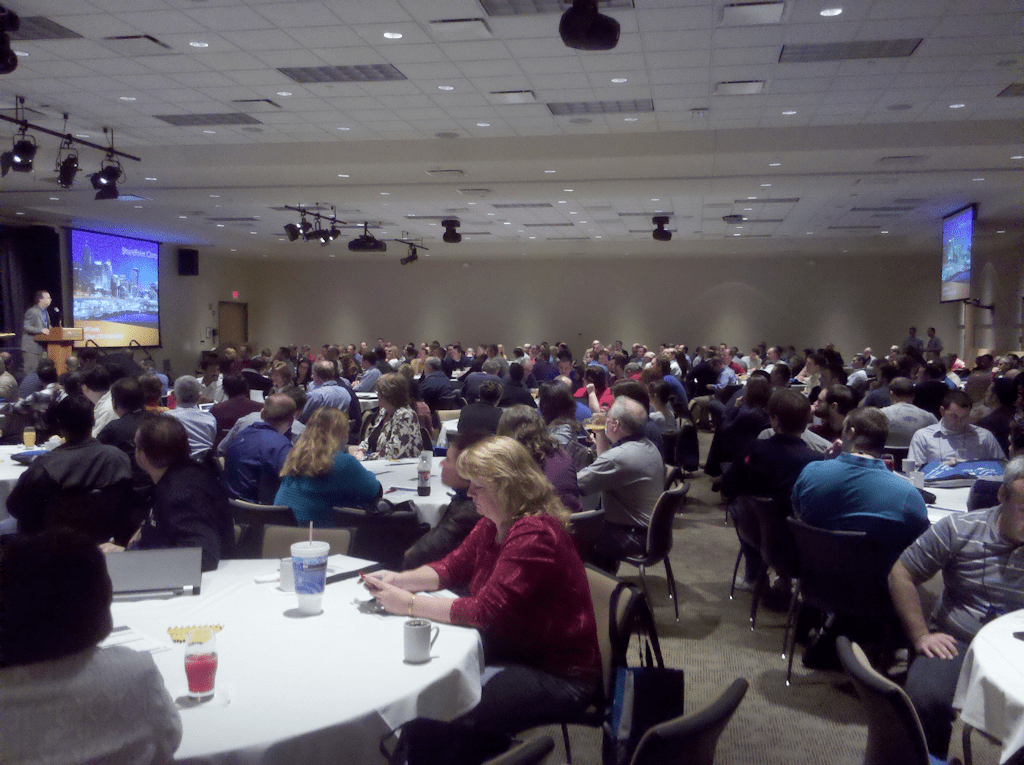
SharePoint Cincy EventOn March 18th, Cincinnati saw it’s first (arguably) “major” SharePoint event.  SharePoint Cincy was put together by Geoff Smith, the Cincinnati CIO Roundtable, and MAX Training … and it was a huge success by any measure.  I took the picture on the right during the introductory speech by Geoff Smith, and it should give you an idea of well-attended the event was.

I was fortunate enough to deliver a talk on disaster recovery during the day, and I also helped Geoff and the organizing committee in advance of the event with some of the speaker round-up for the IT professional / administrator track.

I enjoyed the event because the audience composition was different than one would typically find at a SharePoint Saturday event.  Many of those in attendance were IT decision makers and managers rather than implementers and developers.  I attribute the high numbers in my DR session (typically not a big pull with technical crowds) to that demographic difference.

The next SharePoint Cincy event is already planned for next year (on March 12th, I believe), so keep your eyes peeled at the beginning of next year!

SharePoint Saturday Twin Cities

SharePoint Saturday Twin CitiesSome fine folks in the Minneapolis and St. Paul area (Jim Ferguson, Sarah Haase, and Wes Preston)  have worked to assemble the upcoming SharePoint Saturday Twin Cities on April 9, 2011.  Like all SharePoint Saturdays, the event is free for attendees.  There’s plenty of good education and giveaways to make it worth your while to spend a Saturday with other SharePoint enthusiasts.

I’ll be heading out to the event to deliver my IT pro caching talk titled “’Caching-In’ for SharePoint Performance”  The abstract for the session appears below

Caching is a critical variable in the SharePoint scalability and performance equation, but it’s one that’s oftentimes misunderstood or dismissed as being needed only in Internet-facing scenarios.  In this session, we’ll build an understanding of the caching options that exist within the SharePoint platform and how they can be leveraged to inject some pep into most SharePoint sites.  We’ll also cover some sample scenarios, caching pitfalls, and watch-outs that every administrator should know.

If you’re in the Twin Cities area and available on Saturday April 9th, come on by the following address …

Normandale Community College
9700 France Avenue South
Bloomington, MN 55431

… for a day of high-quality and free training.  You can register here on Eventbrite!

Lunch and Learn with Prinomic

Idera partners with a number of different companies in order to make its software more available, and one of those companies is Prinomic Technologies.  Prinomic is a consulting company based out of Denver, Colorado, and they focus on the creation of solutions that employ and target SharePoint.  They are somewhat unique in that they offer a combination of both services and products, and it affords them a great deal of flexibility when addressing customer needs.

I’ll actually be traveling out to Denver to deliver a lunch-and-learn in conjunction with Prinomic titled “SharePoint Disaster Recovery Options” on Wednesday, April 13th, 2011.  The lunch and learn is open to the public; simply follow the link (above) to register if you’re interested.

Prinomic is located at the following address:

4600 S Syracuse
9th floor
Denver, CO 80237

Colorado Springs SharePoint User Group

Knowing that I’d be out in the Denver area on April 13th, I reached out to some of the folks I know there to see if I might coordinate something with one of the local user groups.  I love speaking, and it was my hope that someone would actually grant me some more time with additional SharePoint geeks!

I was very fortunate to get a reply back from Dave Milner.  Dave and Gary Lapointe run the Colorado Springs SharePoint User Group, and they mentioned that it would be okay for me to come by and present to their group on the evening of the 13th.  So, it looks like I’ll be heading down to Colorado Springs after the lunch and learn with Prinomic!

I’ll be presenting my 2010 DR talk titled “SharePoint 2010 and Your DR Plan: New Capabilities, New Possibilities!”

Disaster recovery planning for a SharePoint 2010 environment is something that must be performed to insure your data and the continuity of business operations. Microsoft made significant enhancements to the disaster recovery landscape with SharePoint 2010, and we’ll be taking a good look at how the platform has evolved in this session. We’ll dive inside the improvements to the native backup and restore capabilities that are present in the SharePoint 2007 platform to see what has been changed and enhanced. We’ll also look at the array of exciting new capabilities that have been integrated into the SharePoint 2010 platform, such as unattended content database recovery, SQL Server snapshot integration, and configuration-only backup and restore. By the time we’re done, you will possess a solid understanding of how the disaster recovery landscape has changed with SharePoint 2010.

If you’re in the Colorado Springs area on Wednesday, April 13th, come on by the user group!  The user group meets at the following address:

Cobham Analytics
985 Space Center Drive
Suite 100
Colorado Springs, CO

Meet-and-greet activities are from 5:30pm until 6pm, and the session begins at 6pm!

TechNet Events: Transforming IT from Virtualization to the Cloud

Finally, I wanted to mention a series of events that are both going on right now and coming soon.  My good friend Matt Hester, our region’s IT Pro Evangelist with Microsoft, is traveling around putting on a series of Technet events titled “Transforming IT from Virtualization to the Cloud.”  These events are free training and center on cloud computing, why it is important, private vs. public cloud options, etc.

The event looks really cool, and it’s being offered in a number of different cities in the region.  I’ve already signed up for the Cincinnati event on April 6th (a Wednesday).  Check out Matt’s blog post (linked above) for additional details.  If you want to sign up for the Cincinnati event on April 6th, you can use this link directly.

Additional Reading and References

  1. Event: SharePoint Cincy
  2. People: Geoff Smith
  3. Blog: Jim Ferguson
  4. Twitter: Sarah Haase
  5. Blog: Wes Preston
  6. Event: SharePoint Saturday Twin Cities
  7. Registration: SharePoint Saturday Twin Cities on Eventbrite
  8. Company: Idera
  9. Company: Prinomic Technologies
  10. Lunch and Learn: “SharePoint Disaster Recovery Options”
  11. LinkedIn: Dave Milner
  12. LinkedIn: Gary Lapointe
  13. Technet Event: “Transforming IT from Virtualization to the Cloud”
  14. Technet Event: Cincinnati cloud event

Client-Server Interactions and the max-age Attribute with SharePoint BLOB Caching

This post discusses how client-side caching and the max-attribute work with SharePoint BLOB caching. Client-server request/response interactions are covered, and some max-age watch-outs are also detailed.

I first presented (in some organized capacity) on SharePoint’s platform caching capabilities at SharePoint Saturday Ozarks in June of 2010, and since that time I’ve consistently received a growing number of questions on the topic of SharePoint BLOB caching.  When I start talking about BLOB caching itself, the area that seems to draw the greatest number of questions and “really?!?!” responses is the use of the max-age attribute and how it can profoundly impact client-server interactions.

I’d been promising a number of people (including Todd Klindt and Becky Bertram) that I would write a post about the topic sometime soon, and recently decided that I had lollygagged around long enough.

Before I go too far, though, I should probably explain why the max-age attribute is so special … and even before I do that, we need to agree on what “caching” is and does.

Caching 101

Why does SharePoint supply caching mechanisms?  Better yet, why does any application or hardware device employ caching?  Generally speaking, caching is utilized to improve performance by taking frequently accessed data and placing it in a state or location that facilitates faster access.  Faster access is commonly achieved through one or both of the following mechanisms:

  • By placing the data that is to be accessed on a faster storage medium; for example, taking frequently accessed data from a hard drive and placing it into memory.
  • By placing the data that is to be accessed closer to the point of usage; for example, offloading files from a server that is halfway around the world to one that is local to the point of consumption to reduce round-trip latency and bandwidth concerns.  For Internet traffic, this scenario can be addressed with edge caching through a content delivery network such as that which is offered by Akamai’s EdgePlatform.

Oftentimes, data that is cached is expensive to fetch or computationally calculate.  Take the digits in pi (3.1415926535 …) for example.  Computing pi to 100 decimals requires a series of mathematical operations, and those operations take time.  If the digits of pi are regularly requested or used by an application, it is probably better to compute those digits once and cache the sequence in memory than to calculate it on-demand each time the value is needed.

Caching usually improves performance and scalability, and these ultimately tend to translate into a better user experience.

SharePoint and caching

Through its publishing infrastructure, SharePoint provides a number of different platform caching capabilities that can work wonders to improve performance and scalability.  Note that yes, I did say “publishing infrastructure” – sorry, I’m not talking about Windows SharePoint Services 3 or SharePoint Foundation 2010 here.

With any paid version of SharePoint, you get object caching, page output caching, and BLOB caching.  With SharePoint 2010 and the Office Web Applications, you also get the Office Web Applications Cache (for which I highly recommend this blog post written by Bill Baer).

Each of these caching mechanisms and options work to improve performance within a SharePoint farm by using a combination of the two mechanisms I described earlier.  Object caching stores frequently accessed property, query, and navigational data in memory on WFEs.  Basic BLOB caching copies images, CSS, and similar resource data from content databases to the file system of WFEs.  Page output caching piggybacks on ASP.NET page caching and holds SharePoint pages (which are expensive to render) in memory and serves them back to users.  The Office Web Applications Cache stores the output of Word documents and PowerPoint presentations (which is expensive to render in web-accessible form) in a special site collection for subsequent re-use.

Public-facing SharePoint

Each of the aforementioned caching mechanisms yields some form of performance improvement within the SharePoint farm by reducing load or processing burden, and that’s all well and good … but do any of them improve performance outside of the SharePoint farm?

What do I even mean by “outside of the SharePoint farm?”  Well, consider a SharePoint farm that serves up content to external consumers – a standard/typical Internet presence web site.  Most of us in the SharePoint universe have seen (or held up) the Hawaiian Airlines and Ferrari websites as examples of what SharePoint can do in a public-facing capacity.  These are exactly the type of sites I am focused on when I ask about what caching can do outside of the SharePoint farm.

For companies that host public-facing SharePoint sites, there is almost always a desire to reduce load and traffic into the web front-ends (WFEs) that serve up those sites.  These companies are concerned with many of the same performance issues that concern SharePoint intranet sites, but public-facing sites have one additional concern that intranet sites typically don’t: Internet bandwidth.

Even though Internet bandwidth is much easier to come by these days than it used to be, it’s not unlimited.  In the age of gigabit Ethernet to the desktop, most intranet users don’t think about (nor do they have to concern themselves with) the actual bandwidth to their SharePoint sites.  I can tell you from experience that such is not the case when serving up SharePoint sites to the general public

So … for all the platform caching options that SharePoint has, is there anything it can actually do to assist with the Internet bandwidth issue?

Enter BLOB caching and the max-age attribute

As it turns out, the answer to that question is “yes” … and of course, it centers around BLOB caching and the max-age attribute specifically.  Let’s start by looking at the <BlobCache /> element that is present in every SharePoint Server 2010 web.config file.

BLOB caching disabled

[sourcecode language=”xml”]
<BlobCache location="C:\BlobCache\14" path="\.(gif|jpg|jpeg|jpe|jfif|bmp|dib|tif|tiff|ico|png|wdp|hdp|css|js|asf|avi|flv|m4v|mov|mp3|mp4|mpeg|mpg|rm|rmvb|wma|wmv)$" maxSize="10" enabled="false" />
[/sourcecode]

This is the default <BlobCache /> element that is present in all starting SharePoint Server 2010 web.config files, and astute readers will notice that the enabled attribute has a value of false.  In this configuration, BLOB caching is turned off and every request for BLOB resources follows a particular sequence of steps.  The first request in a browser session looks like this:

image

In this series of steps

  1. A request for a BLOB resource is made to a WFE
  2. The WFE fetches the BLOB resource from the appropriate content database
  3. The BLOB is returned to the WFE
  4. The WFE returns an HTTP 200 status code and the BLOB to the requester
    Here’s a section of the actual HTTP response from server (step #4 above):

[sourcecode highlight=”2″]
HTTP/1.1 200 OK
Cache-Control: private,max-age=0
Content-Length: 1241304
Content-Type: image/jpeg
Expires: Tue, 09 Nov 2010 14:59:39 GMT
Last-Modified: Wed, 24 Nov 2010 14:59:40 GMT
ETag: "{9EE83B76-50AC-4280-9270-9FC7B540A2E3},7"
Server: Microsoft-IIS/7.5
SPRequestGuid: 45874590-475f-41fc-adf6-d67713cbdc85
[/sourcecode]

You’ll notice that I highlighted the Cache-Control header line.  This line gives the requesting browser guidance on what it should and shouldn’t do with regard to caching the BLOB resource (typically an image, CSS file, etc.) it has requested.  This particular combination basically tells the browser that it’s okay to cache the resource for the current user, but the resource shouldn’t be shared with other users or outside the current session.

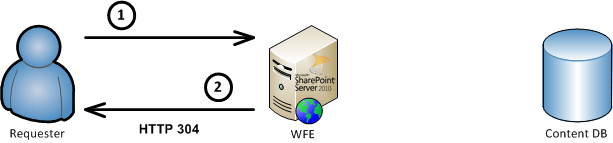
    Since the browser knows that it’s okay to privately cache the requested resource, subsequent requests for the resource by the same user (and within the same browser session) follow a different pattern:

image

When the browser makes subsequent requests like this for the resource, the HTTP response (in step #2) looks different than it did on the first request:

[sourcecode]
HTTP/1.1 304 NOT MODIFIED
Cache-Control: private,max-age=0
Content-Length: 0
Expires: Tue, 09 Nov 2010 14:59:59 GMT
[/sourcecode]

    A request is made and a response is returned, but the HTTP 304 status code indicates that the requested resource wasn’t updated on the server; as a result, the browser can re-use its cached copy.  Being able to re-use the cached copy is certainly an improvement over re-fetching it, but again: the cached copy is only used for the duration of the browser session – and only for the user who originally fetched it.  The requester also has to contact the WFE to determine that the cached copy is still valid, so there’s the overhead of an additional round-trip to the WFE for each requested resource anytime a page is refreshed or re-rendered.

BLOB caching enabled

Even if you’re not a SharePoint administrator and generally don’t poke around web.config files, you can probably guess at how BLOB caching is enabled after reading the previous section.  That’s right: it’s enabled by setting the enabled attribute to true as follows:

[sourcecode language=”xml”]
<BlobCache location="C:\BlobCache\14" path="\.(gif|jpg|jpeg|jpe|jfif|bmp|dib|tif|tiff|ico|png|wdp|hdp|css|js|asf|avi|flv|m4v|mov|mp3|mp4|mpeg|mpg|rm|rmvb|wma|wmv)$" maxSize="10" enabled="true" />
[/sourcecode]

When BLOB caching is enabled in this fashion, the request pattern for BLOB resources changes quite a bit.  The first request during a browser session looks like this:

image

In this series of steps

  1. A request for a BLOB resource is made to a WFE
  2. The WFE returns the BLOB resource from a file system cache

The gray arrow that is shown indicates that at some point, an initial fetch of the BLOB resource is needed to populate the BLOB cache in the file system of the WFE.  After that point, the resource is served directly from the WFE so that subsequent requests are handled locally for the duration of the browser session.

As you might imagine based on the interaction patterns described thus far, simply enabling the BLOB cache can work wonders to reduce the load on your SQL Servers (where content databases are housed) and reduce back-end network traffic.  Where things get really interesting, though, is on the client side of the equation (that is, the Requester’s machine) once a resource has been fetched.

What about the max-age attribute?

You probably noticed that a max-age attribute wasn’t specified in the default (previous) <BlobCache /> element.  That’s because the max-age is actually an optional attribute.  It can be added to the <BlobCache /> element in the following fashion:

[sourcecode language=”xml”]
<BlobCache location="C:\BlobCache\14" path="\.(gif|jpg|jpeg|jpe|jfif|bmp|dib|tif|tiff|ico|png|wdp|hdp|css|js|asf|avi|flv|m4v|mov|mp3|mp4|mpeg|mpg|rm|rmvb|wma|wmv)$" maxSize="10" enabled="true" max-age=”43200” />
[/sourcecode]

Before explaining exactly what the max-age attribute does, I think it’s important to first address what it doesn’t do and dispel a misconception that I’ve seen a number of times.  The max-age attribute has nothing to do with how long items stay within the BLOB cache on the WFE’s file system.  max-age is not an expiration period or window of viability for content on the WFE.  The server-side BLOB cache isn’t like other caches in that items expire out of it.  New assets will replace old ones via a maintenance thread that regularly checks associated site collections for changes, but there’s no regular removal of BLOB items from the WFE’s file system BLOB cache simply because of age.  max-age has nothing to do with server side operations.

So, what does the max-age attribute actually do then?  Answer: it controls information that is sent to requesters for purposes of specifying how BLOB items should be cached by the requester.  In short: max-age controls client-side cacheability.

The effect of the max-age attribute

max-age values are specified in seconds; in the case above, 43200 seconds translates into 12 hours.  When a max-age value is specified for BLOB caching, something magical happens with BLOB requests that are made from client browsers.  After a BLOB cache resource is initially fetched by a requester according to the previous “BLOB caching enabled” series of steps, subsequent requests for the fetched resource look like this for a period of time equal to the max-age:

image

You might be saying, “hey, wait a minute … there’s only one step there.  The request doesn’t even go to the WFE?”  That’s right: the request doesn’t go to the WFE.  It gets served directly from local browser cache – assuming such a cache is in use, of course, which it typically is.

Why does this happen?  Let’s take a look at the HTTP response that is sent back with the payload on the initial resource request when BLOB caching is enabled:

[sourcecode highlight=”2″]
HTTP/1.1 200 OK
Cache-Control: public, max-age=43200
Content-Length: 1241304
Content-Type: image/jpeg
Last-Modified: Thu, 22 May 2008 21:26:03 GMT
Accept-Ranges: bytes
ETag: "{F60C28AA-1868-4FF5-A950-8AA2B4F3E161},8pub"
Server: Microsoft-IIS/7.5
SPRequestGuid: 45874590-475f-41fc-adf6-d67713cbdc85
[/sourcecode]

The Cache-Control header line in this case differs quite a bit from the one that was specified when BLOB caching was disabled.  First, the use of public instead of private tells the receiving browser or application that the response payload can be cached and made available across users and sessions.  The response header max-age attribute maps directly to the value specified in the web.config, and in this case it basically indicates that the payload is valid for 12 hours (43,200 seconds) in the cache.  During that 12 hour window, any request for the payload/resource will be served directly from the cache without a trip to the SharePoint WFE.

Implications that come with max-age

On the plus side, serving resources directly out of the client-side cache for a period of time can dramatically reduce requests and overall traffic to WFEs.  This can be a tremendous bandwidth saver, especially when you consider that assets which are BLOB cached tend to be larger in nature – images, media files, etc.  At the same time, serving resources directly out of the cache is much quicker than round-tripping to a WFE – even if the round trip involves nothing more than an HTTP 304 response to say that a cached resource may be used instead of being retrieved.

While serving items directly out of the cache can yield significant benefits, I’ve seen a few organizations get bitten by BLOB caching and excessive max-age periods.  This is particularly true when BLOB caching and long max-age periods are employed in environments where images and other BLOB cached resources are regularly replaced and changed-out.  Let me illustrate with an example.

Suppose a site collection that hosts collaboration activities for a graphic design group is being served through a Web application zone where BLOB caching is enabled and a max-age period of 43,200 seconds (12 hours) is specified.  One of the designers who uses the site collection arrives in the morning, launches her browser, and starts doing some work in the site collection.  Most of the scripts, CSS, images, and other BLOB assets that are retrieved will be cached by the user’s browser for the rest of the work day.  No additional fetches for such assets will take place.

In this particular scenario, caching is probably a bad thing.  Users trying to collaborate on images and other similar (BLOB) content are probably going to be disrupted by the effect of BLOB caching.  The max-age value (duration) in-use would either need to be dialed-back significantly or BLOB caching would have to be turned-off entirely.

What you don’t see can hurt you

There’s one more very important point I want to make when it comes to BLOB caching and the use of the max-age attribute: the default <BlobCache /> element doesn’t come with a max-age attribute value, but that doesn’t mean that there isn’t one in-use.  If you fail to specify a max-age attribute value, you end up with the default of 86,400 seconds – 24 hours.

This wasn’t always the case!  In some recent exploratory work I was doing with Fiddler, I was quite surprised to discover client-side caching taking place where previously it hadn’t.  When I first started playing around with BLOB caching shortly after MOSS 2007 was released, omitting the max-age attribute in the <BlobCache /> element meant that a max-age value of zero (0) was used.  This had the effect of caching BLOB resources in the file system cache on WFEs without those resources getting cached in public, cross-session form on the client-side.  To achieve extended client-side caching, a max-age value had to be explicitly assigned.

Somewhere along the line, this behavior was changed.  I’m not sure where it happened, and attempts to dig back through older VM images (for HTTP response comparisons) didn’t give me a read on when Microsoft made the change.  If I had to guess, though, it probably happened somewhere around service pack 1 (SP1).  That’s strictly a guess, though.  I had always gotten into the habit of explicitly including a max-age value – even if it was zero – so it wasn’t until I was playing with the BLOB caching defaults in a SharePoint 2010 environment that I noticed the 24 hour client-side caching behavior by default.  I then backtracked to verify that the behavior was present in both SharePoint 2007 and SharePoint 2010, and it affected both authenticated and anonymous users.  It wasn’t a fluke.

So watch-out: if you don’t specify a max-age value, you’ll get 24 hour client-side caching by default!  If users complain of images that “won’t update” and stale BLOB-based content, look closely at max-age effects.

An alternate viewpoint on the topic

As I was finishing up this post, I decided that it would probably be a good idea to see if anyone else had written on this topic.  My search quickly turned up Chris O’Brien’s “Optimization, BLOB caching and HTTP 304s” post which was written last year.  It’s an excellent read, highly informative, and covers a number of items I didn’t go into.

Throughout this post, I took the viewpoint of a SharePoint administrator who is seeking to control WFE load and Internet bandwidth consumption.  Chris’ post, on the other hand, was written primarily with developer and end-user concerns in mind.  I wasn’t aware of some of the concerns that Chris points out, and I learned quite a few things while reading his write-up.  I highly recommend checking out his post if you have a moment.

Additional Reading and References

  1. Event: SharePoint Saturday Ozarks (June 2010)
  2. Blob Post: We Drift Deeper Into the Sound … as the (BLOB Cache) Flush Comes
  3. Blog: Todd Klindt’s SharePoint Admin Blog
  4. Blog: Becky Bertram’s Blog
  5. Definition: lollygag
  6. Technology: Akamai’s EdgePlatform
  7. Wikipedia: Pi
  8. TechNet: Cache settings operations (SharePoint Server 2010)
  9. Bill Baer: The Office Web Applications Cache
  10. SharePoint Site: Hawaiian Airlines
  11. SharePoint Site: Ferrari
  12. W3C Site: Cache-Control explanations
  13. Tool: Fiddler
  14. Blog Post: Chris O’Brien: Optimization, BLOB caching and HTTP 304s

February’s Rip-Roarin’ SharePoint Activities

February is a really busy month for SharePoint activities. In this post, I cover some speaking engagements I have during the month. I also talk about the release of Idera SharePoint backup 3.0 — the product we’ve been working so hard to build and make available!

Holy smokes!  2011 is off to a fast start, and February is already here.  Now that our product release is out (see below), I’m going to make good on my promise to get more “real” blog content out.  Before I do that, though, I want to highlight all of the great SharePoint stuff I’m fortunate enough to be involved with during the month of February.

Idera SharePoint backup 3.0 Release

Idera SharePoint backup 3.0 management consoleAs some of you know, I’m currently a Product Manager for SharePoint products at Idera.  Although it isn’t something that is strictly community focused, Idera SharePoint backup has been a large part of my life for most of the last year.  We’ve been doing some really cool development and product work, and I want to share a piece of good news: We just released version 3.0 of Idera SharePoint backup!

Idera SharePoint backup is “my” product from a management standpoint, and I’m really proud of all the effort that our team put in to make the release a reality.  There are a lot of people in many different areas who busted their butts to get the product out-the-door: development, quality assurance, information development, marketing, product marketing management, public relations, web site management, sales, sales engineering, and more.

To everyone who contributed to making the release a success: you have my heartfelt thanks.  To the rest of you who might be shopping for a SharePoint backup product, please check out what we’ve put together!

SPTechCon San Francisco

Idera-sponsored book signings at SPTechCon San FranciscoI’ll be heading out to BZ Media’s SPTechCon in San Francisco for most of the week of February 7th.  Although I will be delivering a lightning talk titled “Backup/Restore Knowledge Nuggets: What’s True, What’s Not?” (more-or-less the same talk I delivered at last Fall’s SPTechCon event in Boston) on Monday the 7th, that’s only a small part of why I’ll be at the conference.

The big stuff?  Well, first off is the big “public release” of Idera SharePoint backup 3.0.  I’ll be talking with conference participants, seeing what they like (and what they don’t like), explaining the new capabilities and features, etc.

My good friend (and co-author) John Ferringer and I will also be doing an Idera-sponsored book signing for our SharePoint 2010 Disaster Recovery Guide.  If you’re going to be at the conference and want to get a free (and signed!) copy of our book, come by booth #302 on Wednesday morning (2/9) at 10am during the coffee and donuts.  We’ll be around and easy to find: John will be the thin bald guy, and I’ll be the mostly bald guy next to him shoveling donuts into his mouth.  I have a tremendous weak spot for donuts …

Presenting for the Rochester SharePoint User Group

Rick Black is one of the organizers of the Rochester (New York) SharePoint User Group.  I met Rick late in 2009 at SharePoint Saturday Cleveland in Cleveland, Ohio; he and I were both presenting sessions.  We talked a bit during the event, and we pinged each other now and again on Twitter and Facebook in the time after the event.

At one point in time, Rick tossed out the idea of having me present for the Rochester SPUG.  I told him I’d certainly be up for it; after all, I really enjoy hanging out with SharePoint users and talking shop.  The trick, of course, would be getting me to Rochester.

Recently, I asked Rick if he thought a virtual SPUG presentation might work for his group.  I do quite a bit of time presenting on Live Meeting these days, so I figured it might be an option.  It sounded like a good idea to Rick, so I’m on the schedule to (virtually) present for the Rochester SPUG on Thursday, February 10th, 2011.  I’ll be presenting Saving SharePoint – a time-tested and refined SharePoint disaster recovery talk.  The abstract reads as follows:

In this session, we will be discussing disaster recovery (DR) concepts and strategies for SharePoint in a format that highlights a combination of both business and technical concerns.  We will define some critical planning terms such as “recovery time objectives” and “recovery point objectives,” and we’ll see why they are so important to understand when trying to formulate a DR strategy.  We will also identify the capabilities and limitations of the Microsoft tools that can used for backing up, restoring, and making SharePoint highly available for disaster recovery purposes.  Changes that have arrived with SharePoint Server 2010 and how they affect DR planning and implementation will also be covered.

I’ll be presenting the night that I get home on a red-eye flight from SPTechCon, so I could be a bit weary … but it will be fun.  I’m really looking forward to it!

SharePoint Saturday San Diego

SharePointSaturdayFor the last weekend of February, I’ll be heading back out to the west coast for SharePoint Saturday San Diego.  The event itself will be held at the San Diego Convention Center on Saturday, February 26th.  The event has filled-up once already, but Chris Givens (who is organizing the event) was able to add another 75 tickets thanks to some additional support from sponsors.

In addition to my Saving SharePoint session (which is described earlier in this post), I’ll be delivering another session called “Caching-In” for SharePoint Performance.  The abstract for the session reads as follows:

Caching is a critical variable in the SharePoint scalability and performance equation, but it’s one that’s oftentimes misunderstood or dismissed as being needed only in Internet-facing scenarios.  In this session, we’ll build an understanding of the caching options that exist within the SharePoint platform and how they can be leveraged to inject some pep into most SharePoint sites.  We’ll also cover some sample scenarios, caching pitfalls, and watch-outs that every administrator should know.

As always, SharePoint Saturday events are free to the public.  They’re a great way to get a day’s worth of free training, access to SharePoint experts, and plenty of swag and info from vendors.  If you live in or around San Diego and are free on 2/26, consider signing up!

Two trips to the west coast in one month is definitely a first for me, but I’m looking forward to it.  I hope to see you out there!

Additional Reading and References

  1. Company: Idera
  2. Product: Idera SharePoint backup
  3. Company: BZ Media
  4. Event: SPTechCon San Francisco
  5. Event: SPTechCon SharePoint Lightning Talks
  6. Blog: John Ferringer’s My Central Admin
  7. Book: SharePoint 2010 Disaster Recovery Guide
  8. Twitter: Rick Black (@ricknology)
  9. User Group: Rochester SharePoint User Group
  10. Events: SharePoint Saturday San Diego
  11. Twitter: Chris Givens (@givenscj)